

Enterprise feature. This is part of OpenLIT Enterprise and needs an enterprise license applied to your organisation; the community edition doesn’t include it. Book a call or email developers@openlit.io to get access to the enterprise build and a license.
- Auth: set up and test Google, GitHub, Microsoft, and Okta sign-in without redeploying.
- Admins: choose who else can manage instance settings.
Who is the instance admin
The first account created on the instance is the primary instance admin. On a standard install this is the seededuser@openlit.io account. On installs that don’t run the seed, it’s the first person to register.
- The primary admin can’t be removed, so the instance always has an admin.
- The primary admin can add more admins.
- Instance admin is separate from organisation roles. Being an organisation Owner doesn’t make someone an instance admin, and being an instance admin doesn’t change their organisation access.
Open the instance admin area
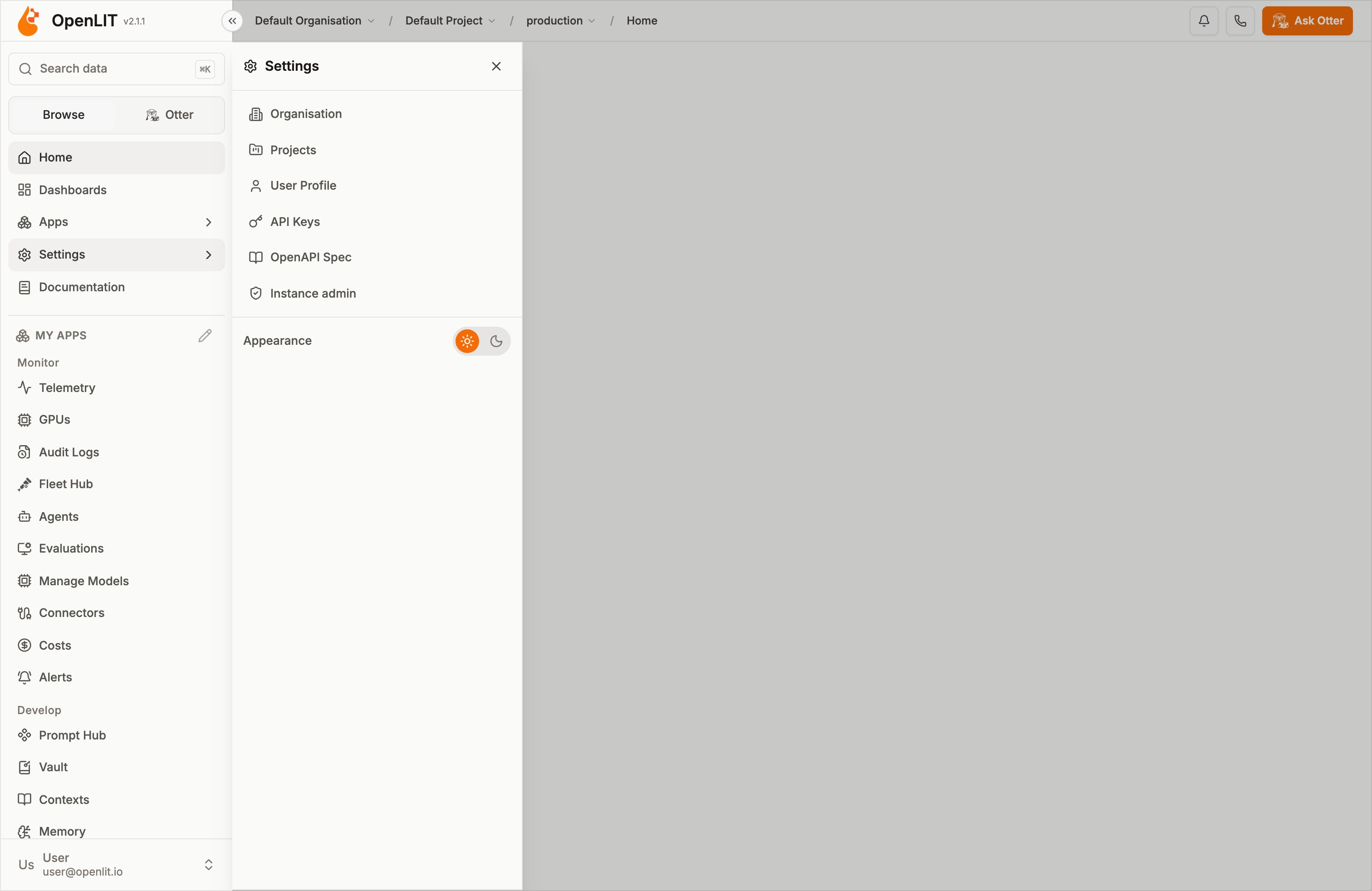
Instance admins see an Instance admin entry in two places:- Settings in the sidebar
- The account menu at the bottom of the sidebar
/admin. Anyone else who opens /admin is sent back to the home page, and the instance admin APIs return 403.
Availability
The instance admin pages need the OpenLIT Enterprise build and an active enterprise license on at least one organisation on the instance. They don’t need a specific license feature. Without a license, the pages are locked and the APIs return
403 with upgrade_required.
In the community edition, /admin opens for the instance admin but has no settings pages.
Auth
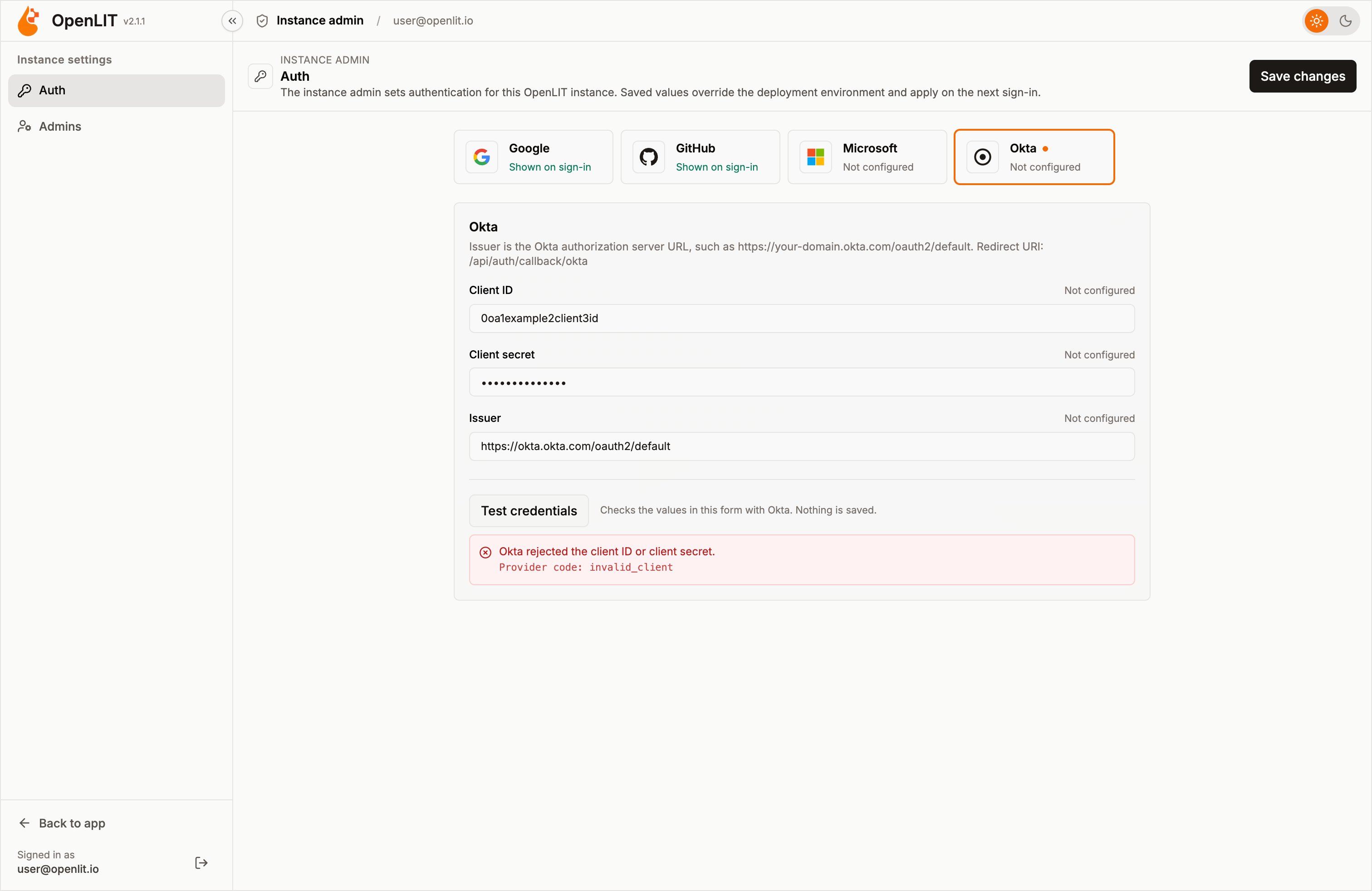
Auth (/admin/auth) shows every sign-in provider OpenLIT supports. Saved values override the deployment’s environment variables and apply on the next sign-in, with no restart.
Provider status
Each provider tile shows whether its button appears on the sign-in page:
A dot next to a provider’s name means it has unsaved changes. If more providers are available than fit on screen, use the arrows on either side of the row to scroll.
Configure a provider
1
Select the provider
Select a provider tile to open its form. The form shows the redirect URI to register with the provider.
2
Enter the values
Each field shows where its current value comes from: Saved for this instance, Deployment environment, or Not configured.
- Client IDs, the Microsoft tenant ID, and the Okta issuer are shown.
- Client secrets are never shown again after they’re saved. Leave a secret field empty to keep the current secret.
3
Test the credentials
Select Test credentials. See Test credentials.
4
Save
Select Save changes. The provider’s button appears on the sign-in page on the next sign-in.
Test credentials
Test credentials checks the values in the form with the provider before you save them. Empty fields use the saved or deployment value. Nothing is saved, and secrets are never shown in the result.
The result shows whether the provider accepted the credentials, plus the provider’s error code when it didn’t (for example
invalid_client).
A successful test confirms the client ID and secret. It doesn’t confirm that the redirect URI is registered with the provider, so check that separately.
common, Microsoft may not confirm credentials that are correct, and the test reports that they couldn’t be confirmed. Set a single directory for a definite answer.
Validation and storage
- The Okta issuer must be a public
httpsURL. IP addresses,localhost, and addresses that resolve to a private network are rejected. - The Microsoft tenant must be a directory ID, a domain,
common,organizations, orconsumers. - Saved values are encrypted at rest.
- Saving is recorded in Audit Logs as
instance_auth.updated, listing only the changed variable names, never their values.
Admins
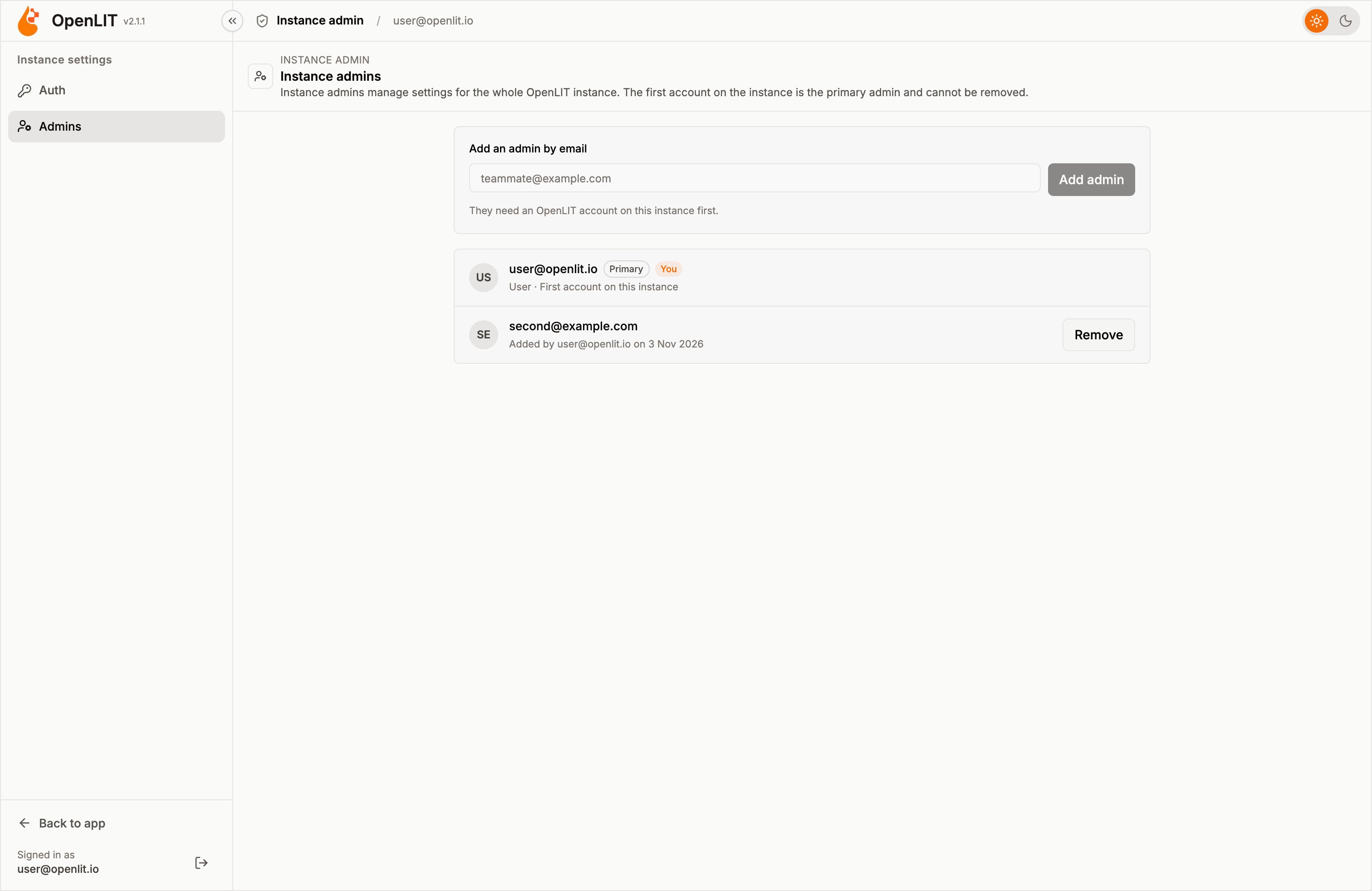
Admins (/admin/admins) lists everyone who can manage instance settings. For each admin it shows who added them and when.
Add an admin
- Enter the person’s email under Add an admin by email.
- Select Add admin.
Remove an admin
Select Remove next to an admin and confirm. They lose access to instance settings on their next request. Their account and organisation access don’t change.- The primary admin can’t be removed.
- You can’t remove yourself. Ask another admin to remove you.
instance_admin.added and instance_admin.removed.
Audit logs
Instance admin actions are recorded against the acting admin’s current organisation, when that organisation is licensed for Audit Logs.Troubleshooting
I don't see Instance admin in Settings
I don't see Instance admin in Settings
- Only instance admins see the entry. Check with the primary admin that you were added on the Admins page.
- The community edition has no instance settings pages, so the entry is hidden there.
The Auth or Admins page is locked
The Auth or Admins page is locked
Apply an active enterprise license to any organisation on the instance. See How licensing works.
No account uses that email
No account uses that email
The person must have an OpenLIT account before they can be made an admin. Ask them to sign up on this instance, then add them again.
Sign-in providers
Set up Google, GitHub, Microsoft, and Okta sign-in
OpenLIT Enterprise
Enterprise features and how licensing works
Audit Logs
Who changed what across your organisation