

/alerts). There are two kinds of alert:
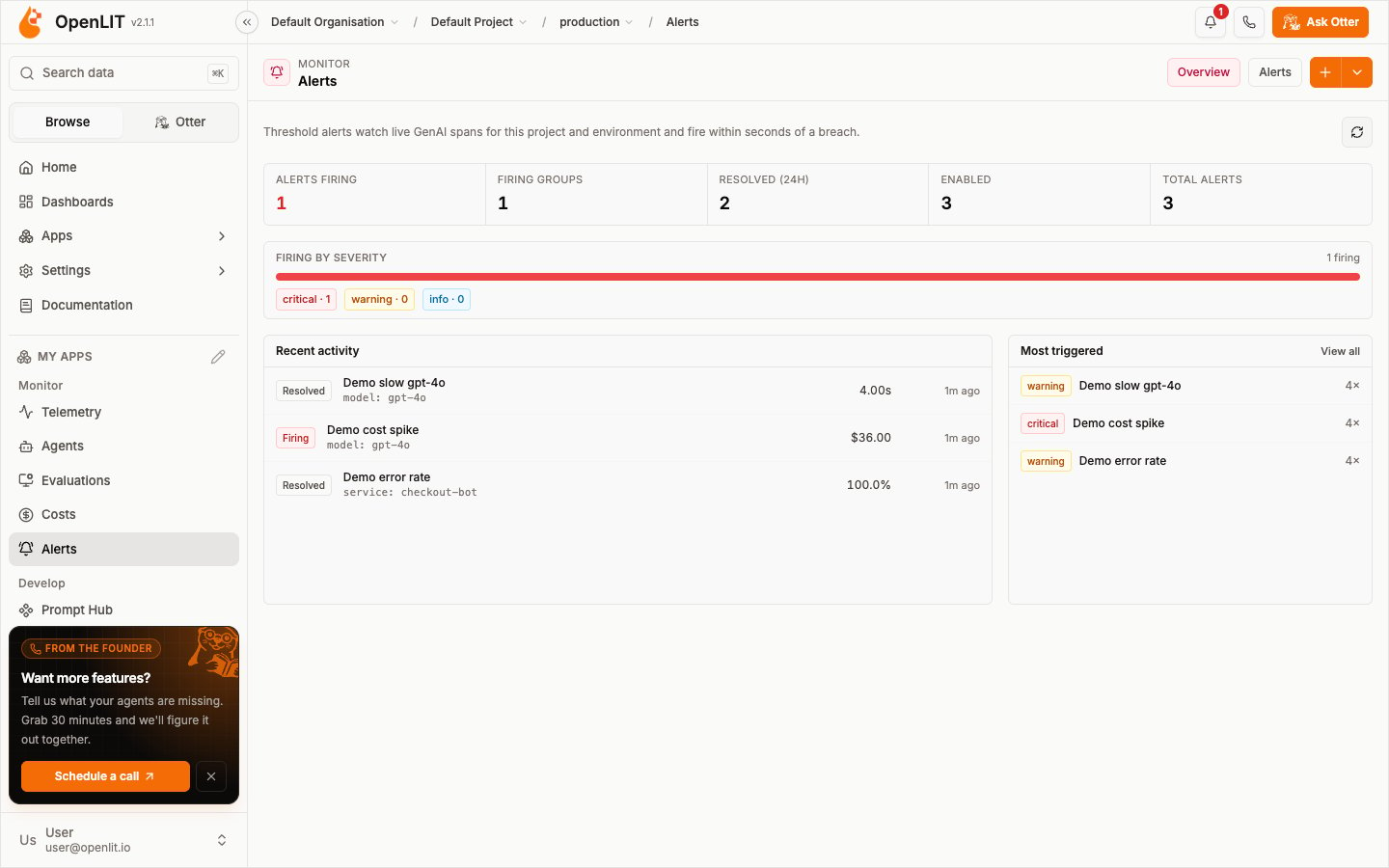
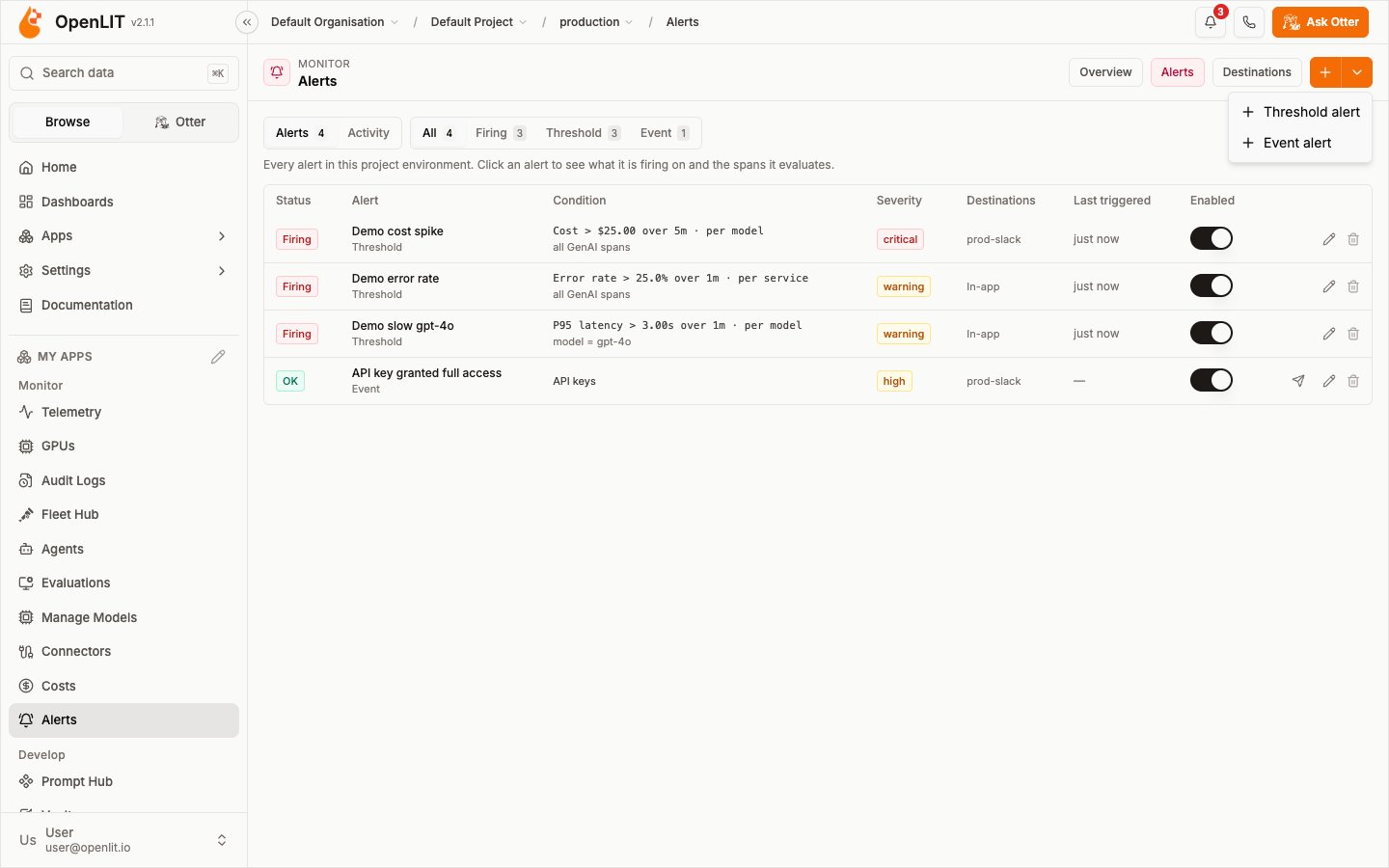
The Alerts area has these pages:
- Overview (
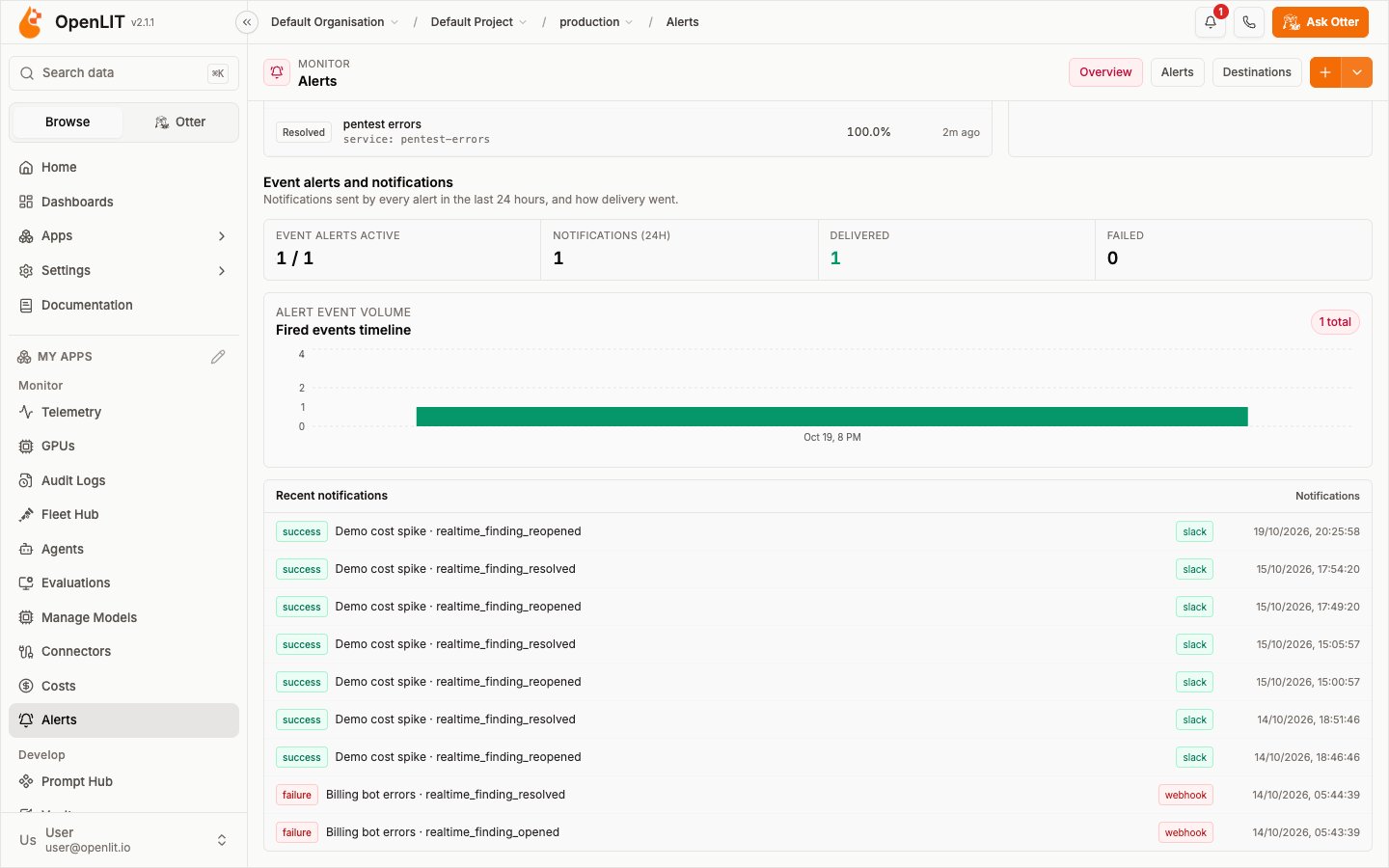
/alerts): what is firing now, by severity, recent activity, and the most-triggered alerts. In Enterprise it also shows event alerts and notification delivery for the last 24 hours. - Alerts (
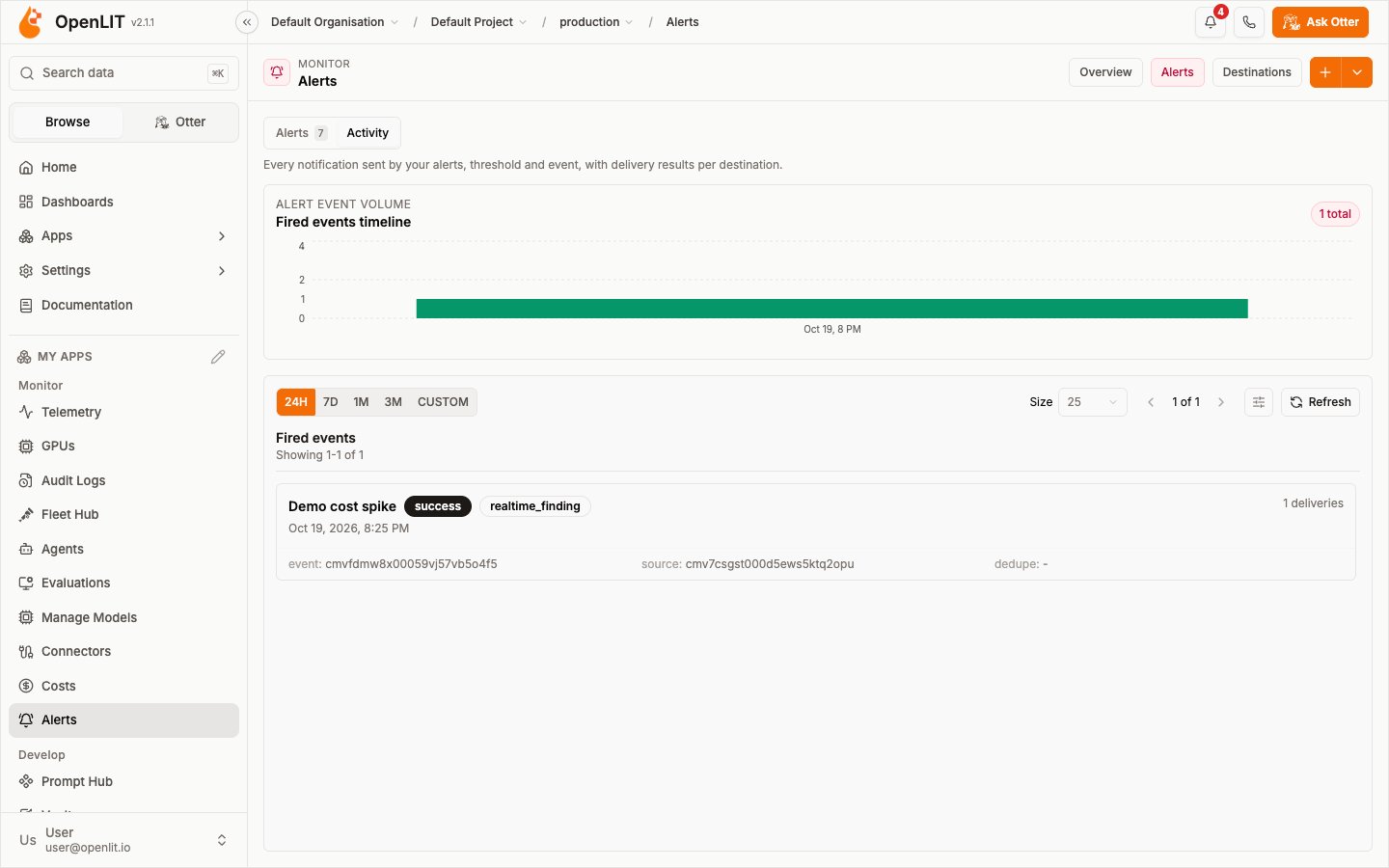
/alerts/list): every alert in the current project and environment. In Enterprise, the Alerts tab lists threshold and event alerts together with All, Firing, Threshold, and Event filters, and the Activity tab lists every notification sent. - Destinations (
/alerts/destinations, Enterprise): where notifications are sent.
How threshold alerts work
Threshold alerts are evaluated on the live span stream, not by querying ClickHouse:- The OTLP receiver writes each span to ClickHouse and, for GenAI spans sent with an API key, publishes a compact signal to NATS JetStream on a subject scoped to the organisation, project, and environment.
- The bundled
openlit-enginekeeps a sliding window per alert and group, and checks every enabled alert every 5 seconds. - When an alert breaches or clears, the engine sends the change to OpenLIT, which records it and notifies.
NATS_URL; Docker Compose runs NATS by default. See Realtime variables.
Signals never include prompts, completions, or messages. Threshold alerts only see spans sent to the project with an API key.
Create a threshold alert
1
Start from a template
Select + in the header, or New alert. Pick a template (Error rate spike, P95 latency breach, Token usage spike, Cost spike) or Blank. A template only fills in the form; nothing runs until you save.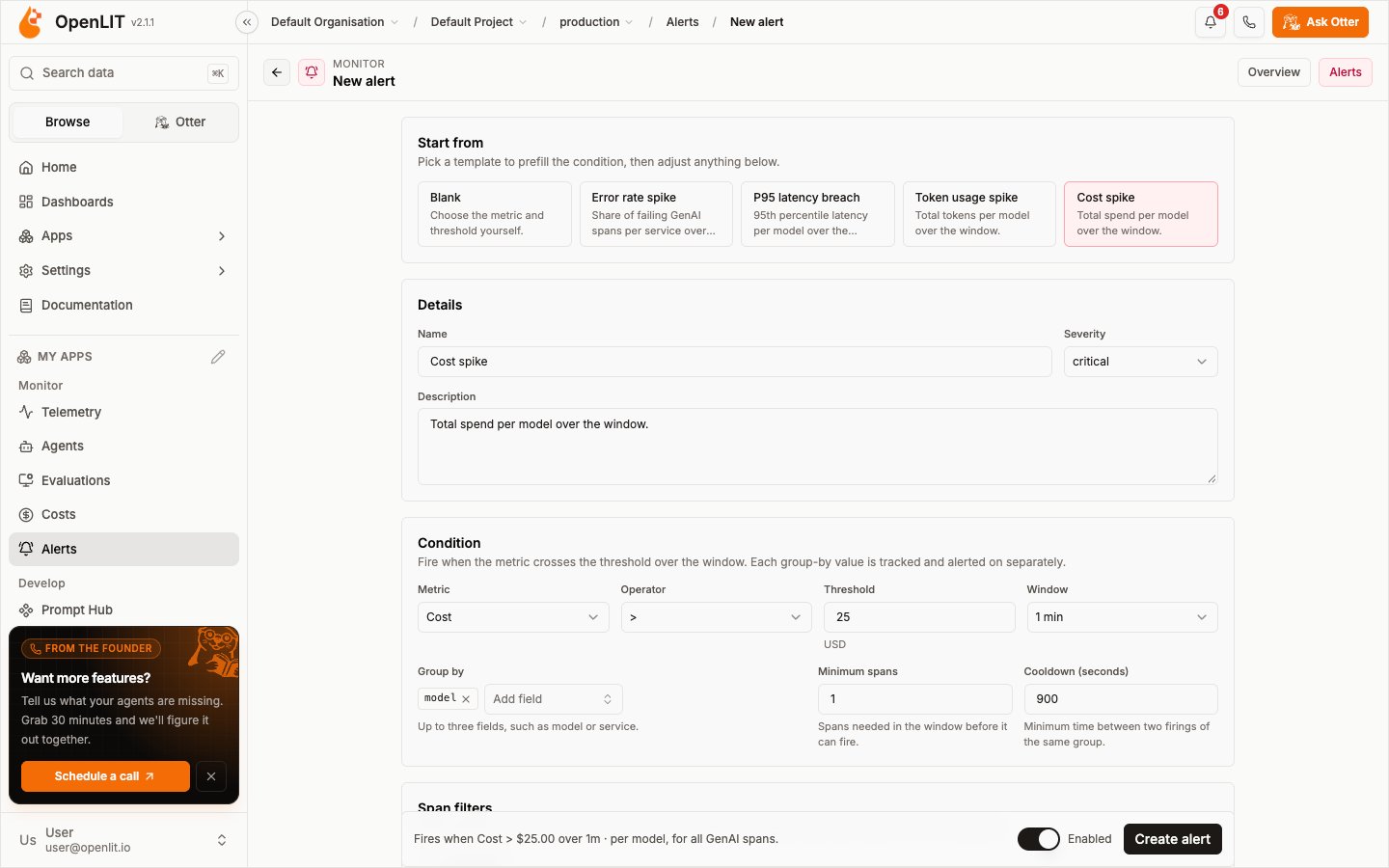
2
Name the alert
Under Details, enter a Name, an optional Description, and a Severity (info, warning, or critical).
3
Set the condition
- Metric: error rate, error count, span count, p95 latency, average latency, total tokens, or cost.
- Operator and Threshold, for example
> 25for cost in USD or> 0.25for a 25% error rate. - Window: the period the metric is computed over (1 minute to 1 hour in the form; 30 seconds to 1 hour through the API).
- Group by (up to three fields): each value, such as each model or service, is tracked and alerted on separately. Pick fields with a bounded set of values (model, service, route). Each alert tracks up to 200 groups (1,000 per project environment); new values beyond that are not evaluated until older groups go quiet, so grouping by a per-request value such as a response ID makes the alert miss values.
- Minimum spans in the window before it can fire, and a Cooldown between two firings of the same group (at least 60 seconds).
4
Narrow it with span filters
Add span filters to evaluate only some spans, for example
model = gpt-4o or service in checkout-bot, search. All filters must match, and text comparisons are case-insensitive. Operators: =, ≠, in, not in, exists, >, ≥, <, ≤, and contains.5
Choose who to notify and save
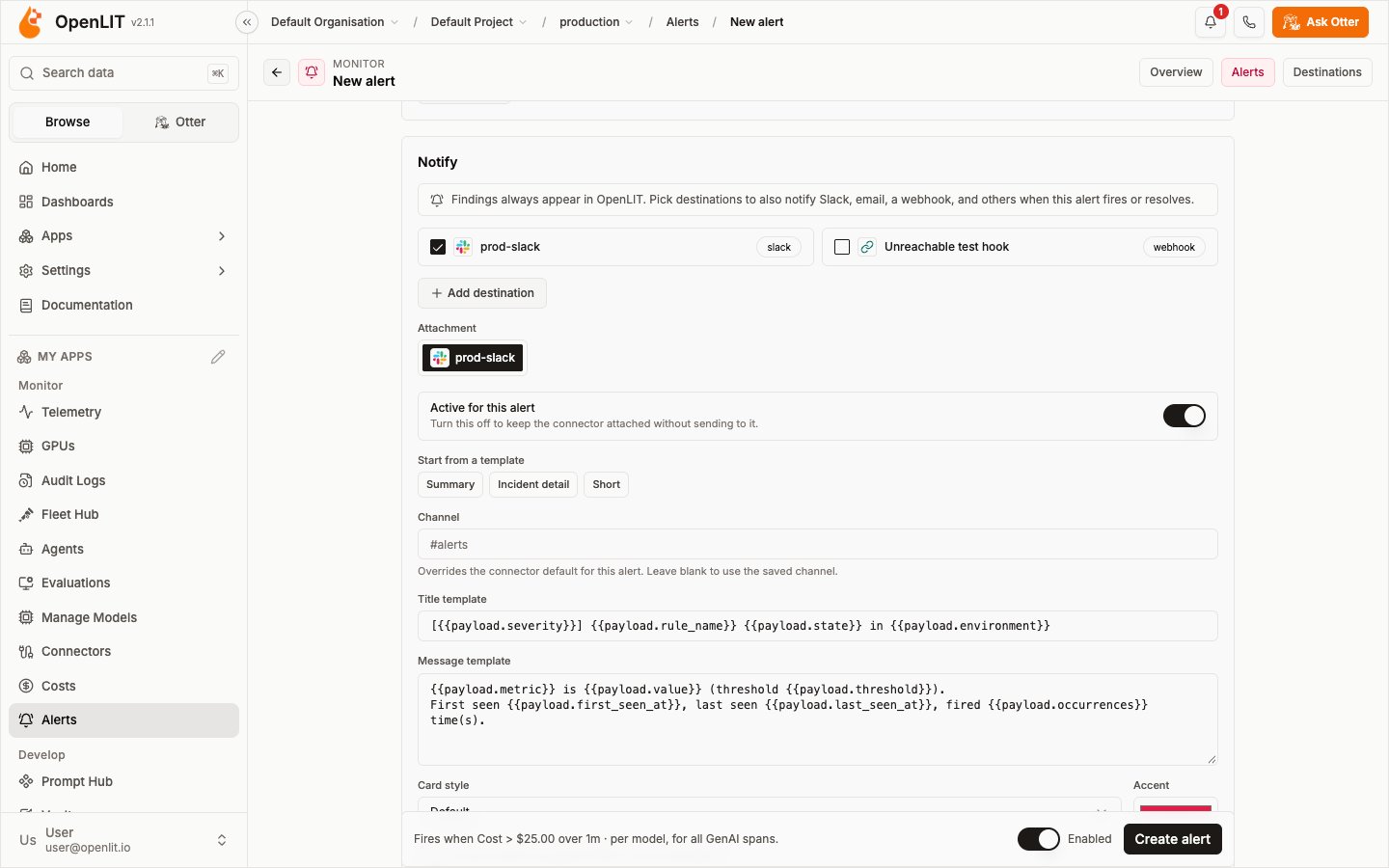
Under Notify, firing alerts always appear in OpenLIT. In Enterprise you can also pick destinations (see Notify destinations). The bar at the bottom describes the alert in plain language, for example Fires when Cost > $25.00 over 5m · per model, for model = gpt-4o. Turn Enabled off to save it paused, then select Create alert.
Span fields and attributes
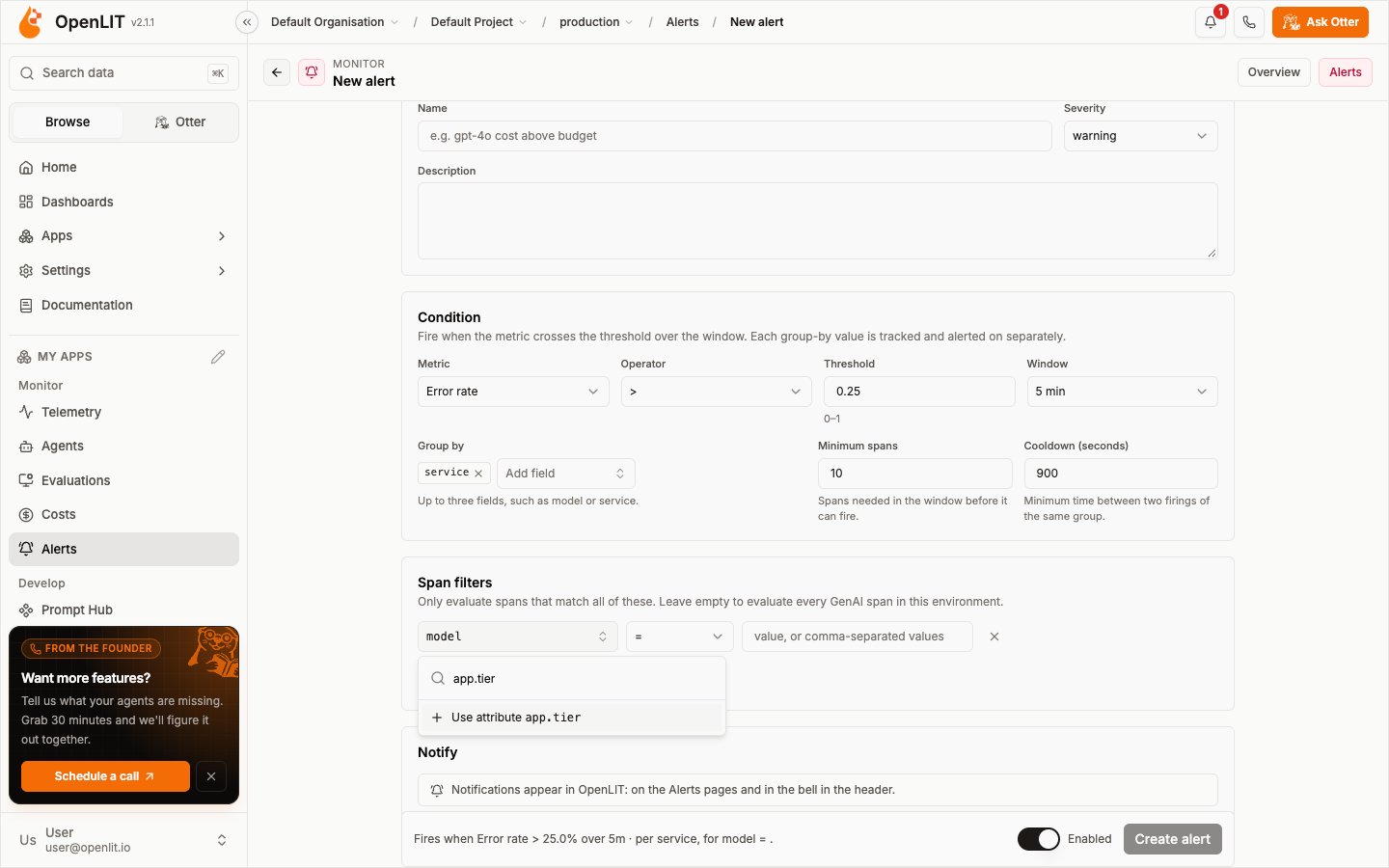
Group by and span filters use a searchable field picker:- Span fields:
service,model,provider,operation,status,error_type,span_name, and, for filters, the numbershttp_status,duration_ms,input_tokens,output_tokens,total_tokens, andcost. - Span attributes: common keys such as
gen_ai.tool.nameorhttp.route, plus the attribute keys seen on this project’s spans in the last 24 hours. - Any other key: type it, for example
app.tierork8s.namespace.name, and select Use attribute.
- Never available: keys containing
prompt,completion,message,content,secret,password,authorization,api_key,credential,cookie,bearer, orinstruction. - Personal keys, off by default: any key with a
user,enduser,session,conversation,email,phone,ip,address, orpathsegment, such asuser.id,session.id,url.path, orserver.address. List the keys you need inOPENLIT_SIGNAL_ATTRIBUTES; until then, saving an alert that uses one returns400.
Firing and resolved
Each group an alert fires for, such as one model, is tracked separately as a finding:- Firing: the metric over the window breaches the threshold and the window has at least the minimum spans. A group fires again only after its cooldown.
- Resolved: the metric over the window no longer breaches, for example because the slow or failing spans aged out of the window. If it breaches again, the same finding reopens.
OPENLIT_REALTIME_FINDING_RETENTION_DAYS). Each environment can have up to 1,000 firing groups at once (OPENLIT_REALTIME_MAX_OPEN_FINDINGS); beyond that, new groups are not recorded.
Alert details
Select an alert to open it. The header shows its status, severity, condition, filters, how many groups are firing now, and when it last fired. The tabs show:- Activity: every group the alert fired for, with its state, value, first and last seen, when it resolved, and how many times it fired. Filter by All, Firing, or Resolved.
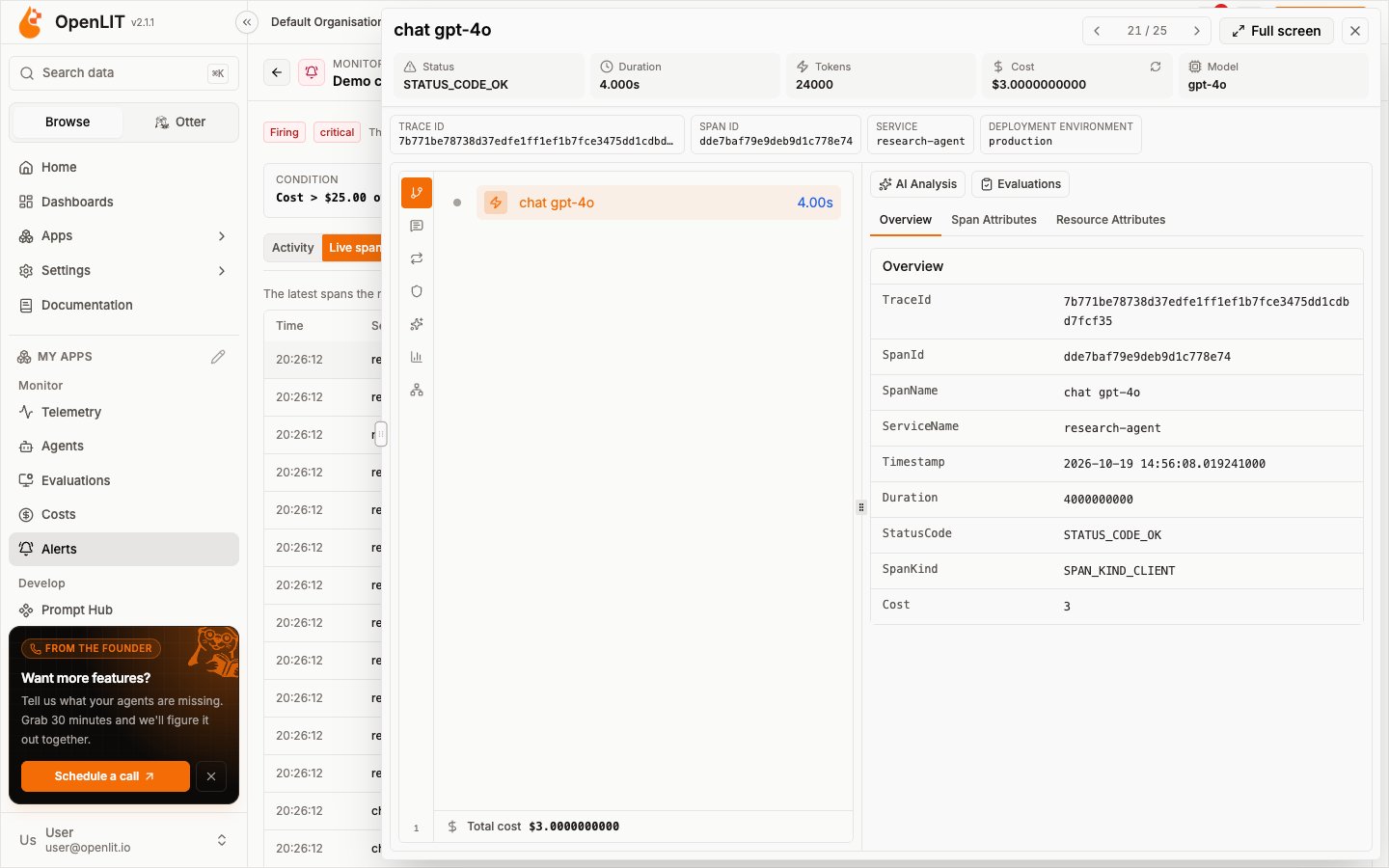
- Live spans: the latest spans that match the alert’s span filters. Select a span to open the same trace view as Telemetry in a side panel, or select Full screen for the trace page.
- Configuration: the saved condition, group by, minimum spans, cooldown, span filters, and the engine rule ID.
Notify destinations
Enterprise feature. This is part of OpenLIT Enterprise and needs an enterprise license applied to your organisation; the community edition doesn’t include it. Book a call or email developers@openlit.io to get access to the enterprise build and a license.
- Active for this alert: turn it off to keep the destination attached without sending to it.
- Start from a template: Summary, Incident detail, or Short fill in the title and message.
- Channel (Slack): overrides the connector’s default channel for this alert.
- Title template and Message template.
- Card style (Default, Compact, Detailed, or Incident) and an Accent colour.
- Include matched payload fields in the notification.
{{alert.name}}, {{alert.severity}}, and these payload fields:
A notification is sent when a group starts firing, fires again, and resolves. Destinations without a template send
{{payload.message}}. Each delivery is listed on the alert and in Alerts → Activity.
Without the Alerts license, the Notify section shows that destinations are locked, and threshold alerts keep notifying in OpenLIT.
Event alerts
Enterprise feature. This is part of OpenLIT Enterprise and needs an enterprise license applied to your organisation; the community edition doesn’t include it. Book a call or email developers@openlit.io to get access to the enterprise build and a license.
Create an event alert
1
Add a destination
Open Destinations and select Add destination, or select Add destination while creating an alert. Choose a provider and fill in its settings. See Notification connectors for the fields each provider needs. Destinations are shared by every alert in the organisation.
2
Switch to Event
Select + in the header and choose Event alert, or open New alert and select Event at the top of the form. The form switches in place; Threshold is selected by default.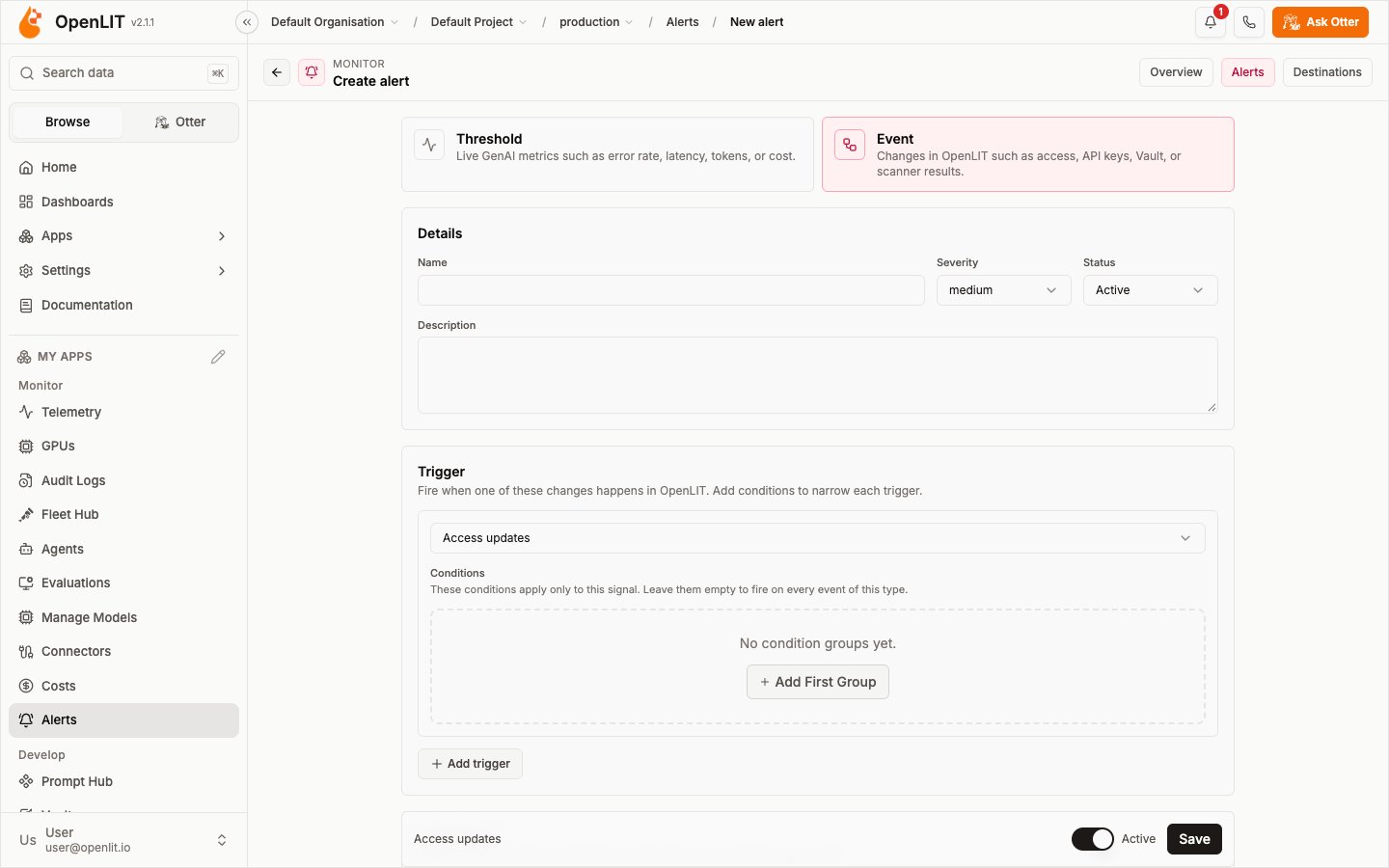
3
Describe the alert
Under Details, enter a Name, a Severity (low, medium, high, or critical), a Status (Active or Paused), and an optional Description.
4
Choose triggers
Under Trigger, pick one or more triggers. The alert fires when any selected trigger matches its own conditions. Leave Conditions empty to fire on every event of that trigger.
5
Pick destinations
Under Destinations, select where to send the alert and customise each destination’s message in the same way as for threshold alerts.
6
Set delivery options and save
Under Delivery, set Cooldown seconds (default 300) and an optional Dedupe key, then select Save. Use the send button on the alert to send a test notification.
Conditions
Conditions narrow when a trigger fires. Each trigger has its own condition groups:- Every group with conditions must match, and within a group you choose whether conditions are combined with AND or OR.
- Text fields support equals, not equals, contains, not contains, starts with, ends with, regex, in, and not in. For in and not in, separate values with commas.
- Number fields support
=,≠,>,≥,<,≤, and between (entermin,max). - Text fields suggest values that OpenLIT has already seen for that trigger, and you can type your own.
event equals api_key_access_updated and access equals full.
Event message templates can use {{alert.id}}, {{alert.name}}, {{alert.severity}}, {{event.id}}, {{event.triggerType}}, {{payload.message}}, and {{payload.<field>}} for any trigger field.
Triggers
How delivery works
When a matching change happens, OpenLIT records an alert event and sends it to every active destination attached to the alert.- Cooldown: an alert doesn’t fire again until Cooldown seconds have passed since its last event. Set
0to turn cooldown off. - Dedupe key: when set, repeated events with the same key are dropped within the cooldown window, or within 300 seconds if cooldown is off.
- Retries: a failed delivery is retried once after 2 seconds.
- Paused alerts don’t fire.
Review notifications
Enterprise feature. This is part of OpenLIT Enterprise and needs an enterprise license applied to your organisation; the community edition doesn’t include it. Book a call or email developers@openlit.io to get access to the enterprise build and a license.
/alerts/events address opens this tab.
Availability
Event alerts and destinations need an OpenLIT Enterprise license that includes the Alerts feature. Sending to destinations such as Slack or PagerDuty uses notification connectors, which are premium connectors and also need the Premium connectors feature. Without the Alerts license, event alerts and destinations are locked and their APIs return
403 with upgrade_required.
Permissions
In Community, every signed-in member of a project can view and manage its threshold alerts. In Enterprise, these permissions apply to both kinds of alert:
With RBAC, you can grant these to custom role groups.
Threshold alerts API
Requests act on the current project and the environment in thex-openlit-environment header (default production); the organisation, project, and environment are never read from the body. In Enterprise, each endpoint needs the matching alerts:* permission.
The request body for create and update:
metric:error_rate,error_count,count,p95_latency_ms,avg_latency_ms,total_tokens, orcost.operator:gt,gte,lt, orlte.match[].op:eq,neq,in,not_in,exists,gt,gte,lt,lte, orcontains.deliveryis Enterprise only and optional. Omit it on update to keep the current destinations; send{ "destinations": [] }to notify in OpenLIT only.{ "destinationIds": ["..."] }is still accepted and uses default message settings. Unknownoverrideskeys are dropped;titleTemplateis limited to 300 characters,messageTemplateto 2,000,channelto 100,cardStylemust bedefault,compact,detailed, orincident, andaccentColora#rrggbbcolour.
Event alerts API
Enterprise feature. This is part of OpenLIT Enterprise and needs an enterprise license applied to your organisation; the community edition doesn’t include it. Book a call or email developers@openlit.io to get access to the enterprise build and a license.
Bind destinations with
destinations: [{ "destinationId": "...", "overrides": { ... } }] (or destinationIds). overrides takes the same settings as threshold alerts: enabled, includeFields, channel (up to 100 characters), titleTemplate (300), messageTemplate (2,000), cardStyle (default, compact, detailed, incident), and accentColor (#rrggbb). Unknown keys are dropped; invalid values return 400.
Notification connectors
Configure Slack, email, webhook, Discord, PagerDuty, Opsgenie, and Datadog destinations
OTLP receiver
How spans reach ClickHouse and the realtime stream