

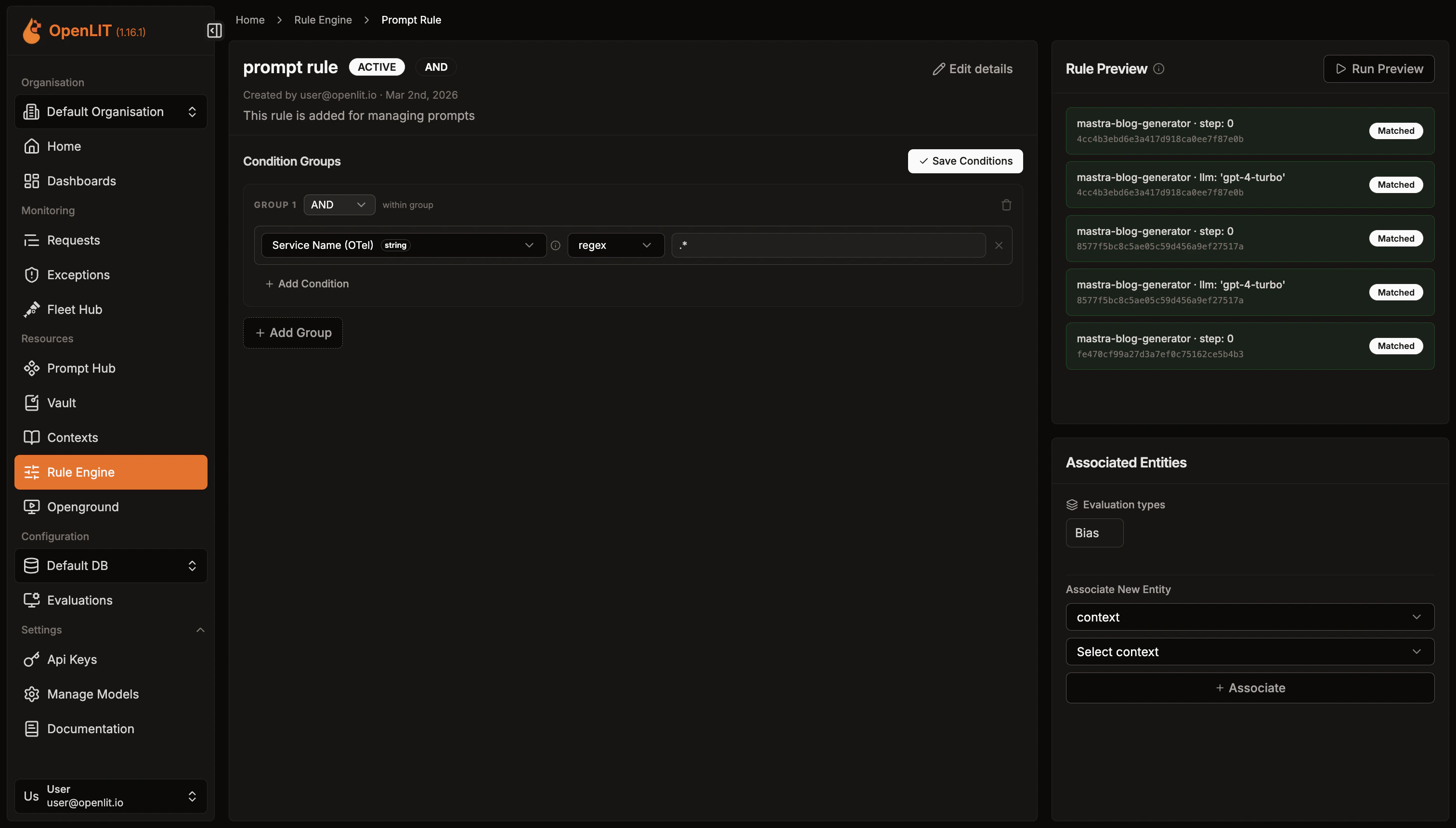
Adding groups and conditions
- On a rule with no conditions yet, you’ll see “No condition groups yet.” and an Add First Group button.
- On a rule that already has groups, click Add Group to add another one.
- Inside a group, click Add Condition to add a condition. Each group shows its own AND/OR choice, labeled “within group”, for combining the conditions inside it.
- When you’re done, click Save Conditions to persist your changes.
Fields, operators, and values
Each condition has three parts:- Field - a dropdown. You choose from a fixed list of fields (there’s no way to type an arbitrary custom field name).
- Operator - a dropdown whose options depend on the field’s data type (string or number - see below).
- Value - a text input. For fields that commonly take one of a known set of real-world values, you’ll see suggestions labeled “Top 100 values from traces. Press Enter to add a custom value.”
Available fields
All fields come from your trace/telemetry data. The number fields are marked below; everything else is a string field.
For example, Model is the model name reported by your LLM calls, and Total Cost ($) is the cost recorded for a request.
String field operators
Number field operators
There’s currently no boolean-type field in the condition builder, so boolean operators aren’t reachable from the UI today. The underlying evaluation logic does support an
equals check for boolean values at the API level, but that’s a forward-looking detail rather than something you can build visually yet.Worked example
Say you want a rule to match requests to a specific, more expensive model where the cost is also high - a candidate for a cost alert:- Click Add First Group (or Add Group if the rule already has one).
- Leave the group’s “within group” operator on AND.
- Click Add Condition, choose Field = Model, Operator = equals, Value = the model name (e.g.
gpt-4). - Click Add Condition again, choose Field = Total Cost ($), Operator = gt, Value =
1000. - Click Save Conditions.
Preview
Test your saved conditions against recent traces before relying on them
Linked Entities
Connect the rule to a Context, Prompt, or Evaluation Type