> ## Documentation Index
> Fetch the complete documentation index at: https://docs.openlit.io/llms.txt
> Use this file to discover all available pages before exploring further.
# New Relic
> LLM Observability with New Relic and OpenLIT
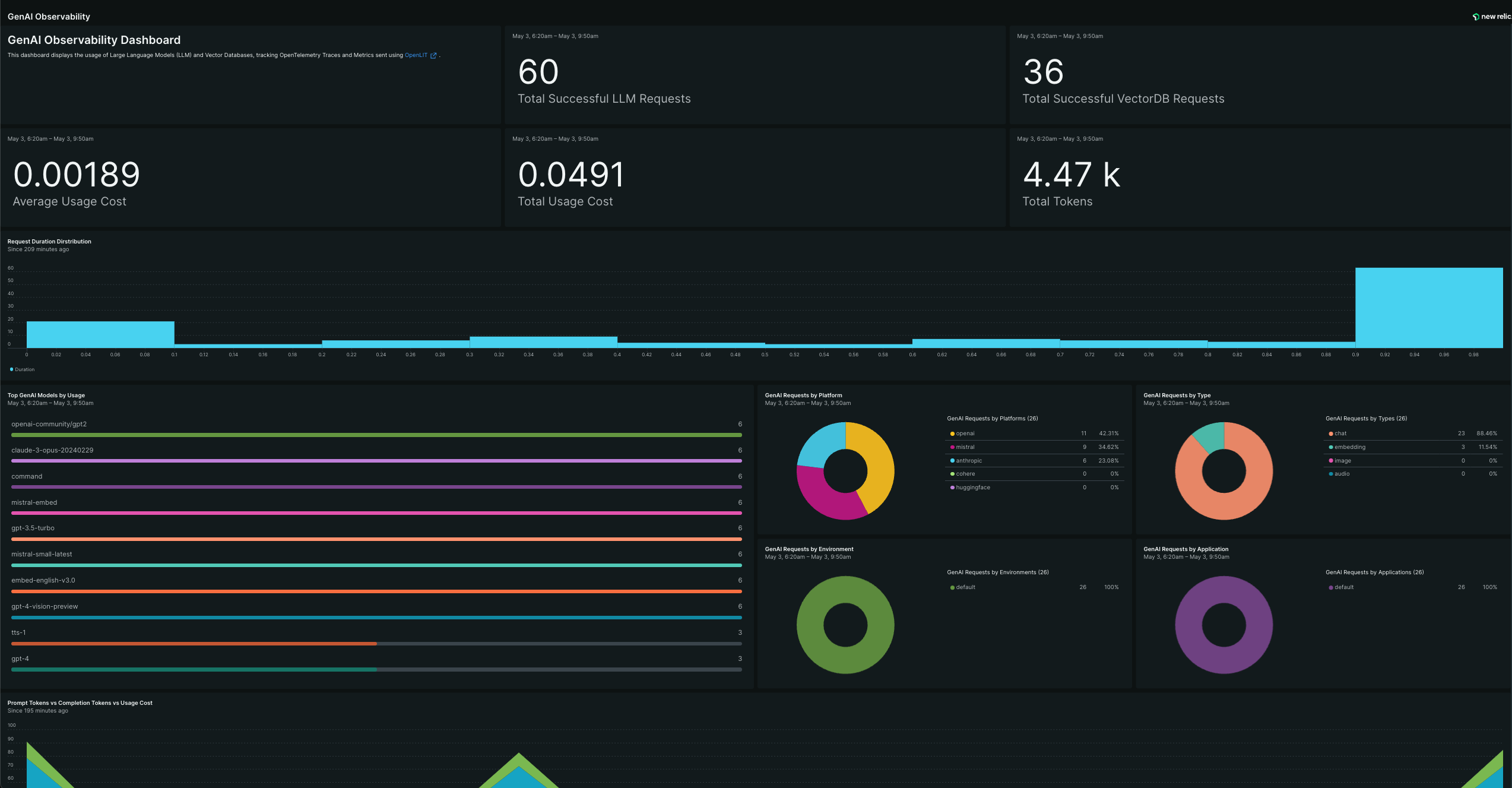
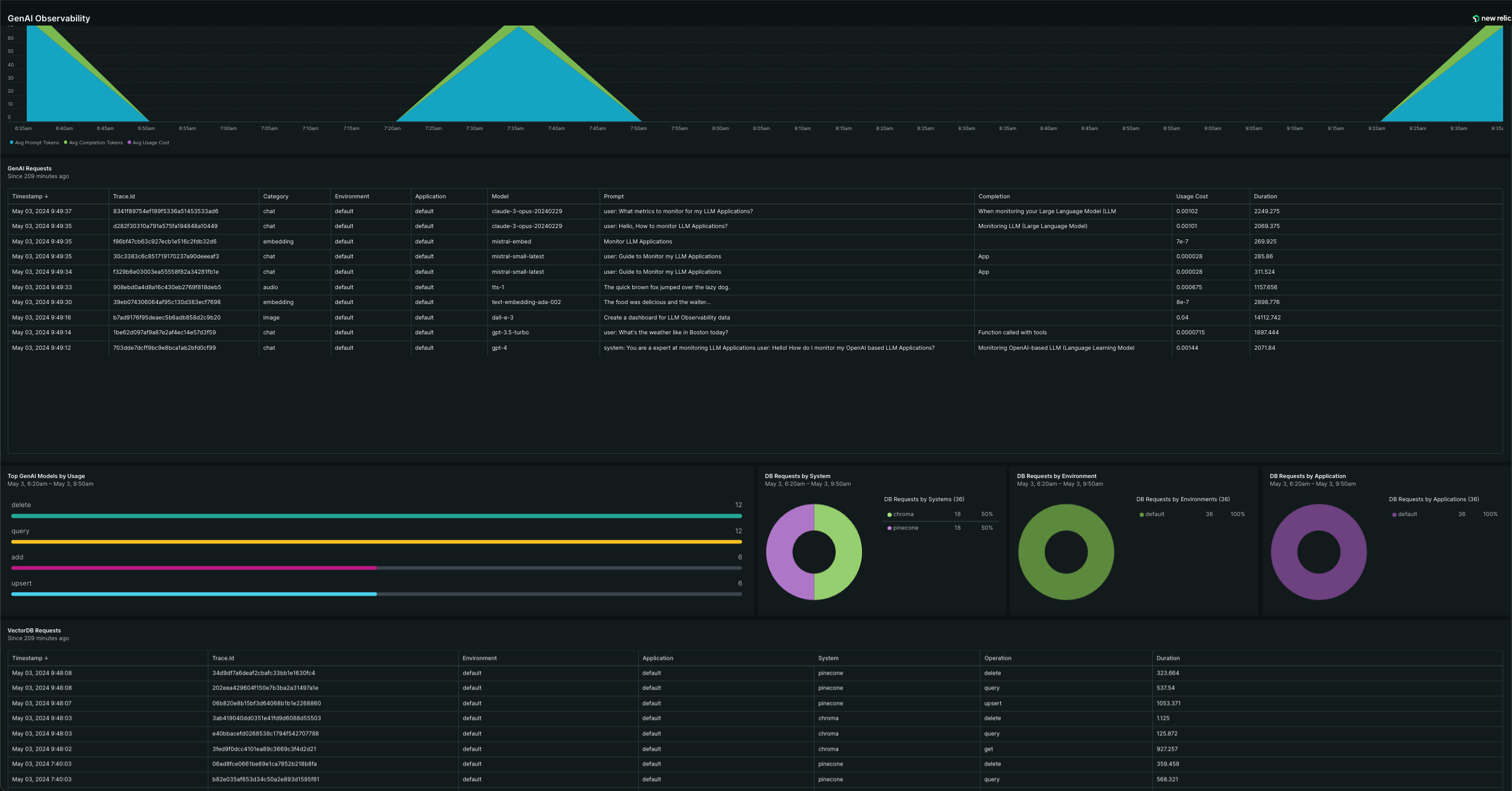 To directly send OpenTelemetry metrics and traces generated by OpenLIT from your AI Application to New Relic, follow the below steps.
### 1. Get your Credentials
1. Go to the New Relic [API Keys UI Page](https://one.newrelic.com/launcher/api-keys-ui.api-keys-launcher)
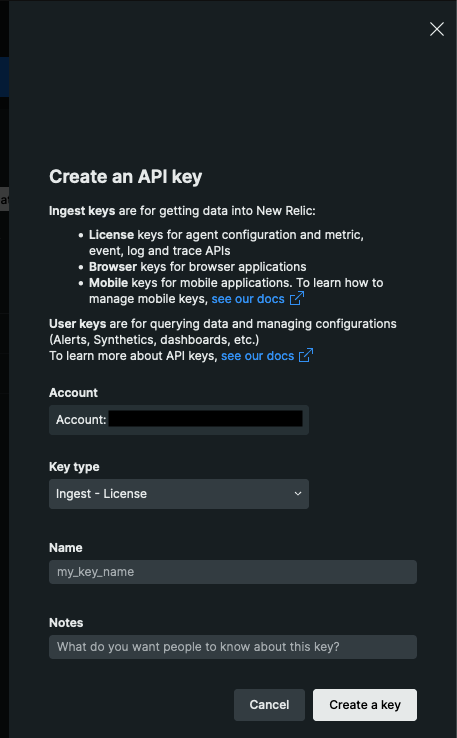
2. Click **Create a Key** Button
3. In the Create an API Key Wizard:
* Set **Key Type** as `Ingest - License`
* Give the API Key **Name**, for example `openlit` and optionally add any **Notes**
* Click on **Create a Key**
To directly send OpenTelemetry metrics and traces generated by OpenLIT from your AI Application to New Relic, follow the below steps.
### 1. Get your Credentials
1. Go to the New Relic [API Keys UI Page](https://one.newrelic.com/launcher/api-keys-ui.api-keys-launcher)
2. Click **Create a Key** Button
3. In the Create an API Key Wizard:
* Set **Key Type** as `Ingest - License`
* Give the API Key **Name**, for example `openlit` and optionally add any **Notes**
* Click on **Create a Key**
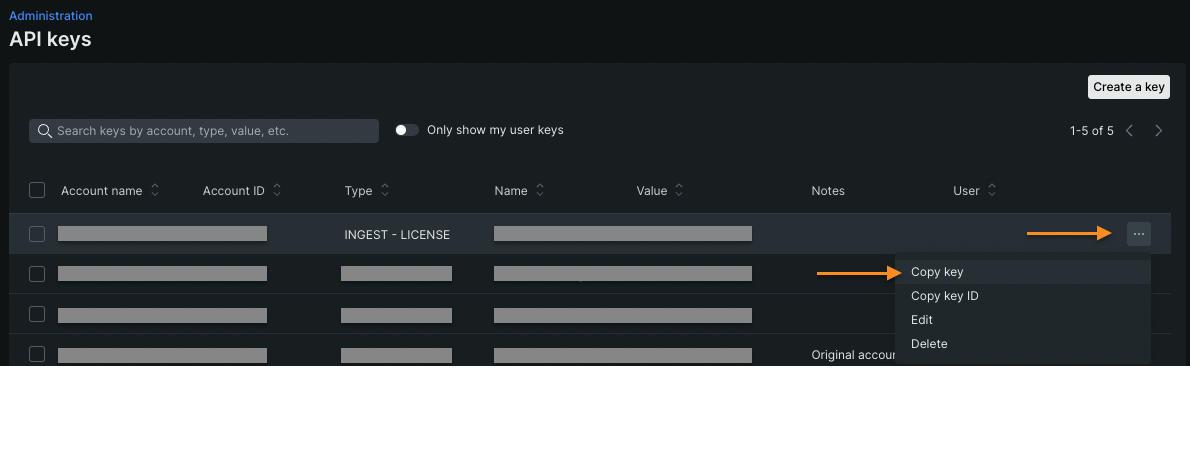
 4. Copy the key by clicking on the three dots (**...**).
 ### 2. Instrument your application
**For direct integration into your Python applications:**
```python theme={null}
import openlit
openlit.init(
otlp_endpoint="https://otlp.nr-data.net:443",
otlp_headers="api-key=YOUR_NEWRELIC_LICENSE_KEY"
)
```
Replace:
1. `YOUR_NEWRELIC_LICENSE_KEY` with the API Key value you copied in Step 1.
* Example: `api-key=acxxxxxxxx`
```python theme={null}
import openlit
openlit.init()
```
Set these environment variables:
```shell theme={null}
export OTEL_EXPORTER_OTLP_ENDPOINT="https://otlp.nr-data.net:443"
export OTEL_EXPORTER_OTLP_HEADERS="api-key=YOUR_NEWRELIC_LICENSE_KEY"
```
Replace:
1. `YOUR_NEWRELIC_LICENSE_KEY` with the API Key value you copied in Step 1.
* Example: `api-key=acxxxxxxxx`
Refer to the OpenLIT [Python SDK repository](https://github.com/openlit/openlit/tree/main/sdk/python) for more advanced configurations and use cases.
**For zero-code auto-instrumentation via command line:**
```shell theme={null}
# Using CLI arguments
openlit-instrument \
--otlp-endpoint "https://otlp.nr-data.net:443" \
--otlp-headers "api-key=YOUR_NEWRELIC_LICENSE_KEY" \
--service-name "my-ai-service" \
--deployment-environment "production" \
python app.py
```
Replace:
1. `YOUR_NEWRELIC_LICENSE_KEY` with the API Key value you copied in Step 1.
* Example: `api-key=acxxxxxxxx`
```shell theme={null}
# Set environment variables (takes precedence over CLI args)
export OTEL_EXPORTER_OTLP_ENDPOINT="https://otlp.nr-data.net:443"
export OTEL_EXPORTER_OTLP_HEADERS="api-key=YOUR_NEWRELIC_LICENSE_KEY"
export OTEL_SERVICE_NAME="my-ai-service"
export OTEL_DEPLOYMENT_ENVIRONMENT="production"
# Run your application
openlit-instrument python app.py
```
Replace:
1. `YOUR_NEWRELIC_LICENSE_KEY` with the API Key value you copied in Step 1.
* Example: `api-key=acxxxxxxxx`
Refer to the OpenLIT [Python SDK repository](https://github.com/openlit/openlit/tree/main/sdk/python) for more advanced configurations and use cases.
### 3. Import the pre-built Dashboard
1. Go to [one.newrelic.com](https://one.newrelic.com/) > Dashboards.
2. In the top-right corner, click **Import dashboard**.
3. Copy the dashboard JSON provided in the accordion named [`Dashboard`](#dashboard) below.
4. Paste the dashboard JSON text directly into the text area.
5. Choose the account and permission settings for the dashboard. You can't change the account once you've set it, but you can change the permissions at any time.
6. Click **Import Dashboard**.
```json theme={null}
{
"name": "GenAI Observability",
"description": null,
"permissions": "PUBLIC_READ_WRITE",
"pages": [
{
"name": "GenAI Observability",
"description": null,
"widgets": [
{
"title": "",
"layout": {
"column": 1,
"row": 1,
"width": 4,
"height": 2
},
"linkedEntityGuids": null,
"visualization": {
"id": "viz.markdown"
},
"rawConfiguration": {
"text": "# GenAI Observability Dashboard\nThis dashboard displays the usage of Large Language Models (LLM) and Vector Databases, tracking OpenTelemetry Traces and Metrics sent using [OpenLIT](https://github.com/openlit/openlit)."
}
},
{
"title": "",
"layout": {
"column": 5,
"row": 1,
"width": 4,
"height": 2
},
"linkedEntityGuids": null,
"visualization": {
"id": "viz.billboard"
},
"rawConfiguration": {
"facet": {
"showOtherSeries": false
},
"nrqlQueries": [
{
"accountIds": [
4060909
],
"query": "SELECT count(`gen_ai.total.requests`) AS 'Total Successful LLM Requests' FROM Metric WHERE `telemetry.sdk.name` = 'openlit'"
}
],
"platformOptions": {
"ignoreTimeRange": false
}
}
},
{
"title": "",
"layout": {
"column": 9,
"row": 1,
"width": 4,
"height": 2
},
"linkedEntityGuids": null,
"visualization": {
"id": "viz.billboard"
},
"rawConfiguration": {
"facet": {
"showOtherSeries": false
},
"nrqlQueries": [
{
"accountIds": [
4060909
],
"query": "SELECT count(`db.total.requests`) AS 'Total Successful VectorDB Requests' FROM Metric WHERE `telemetry.sdk.name` = 'openlit'"
}
],
"platformOptions": {
"ignoreTimeRange": false
}
}
},
{
"title": "Top GenAI Models by Usage",
"layout": {
"column": 1,
"row": 8,
"width": 6,
"height": 6
},
"linkedEntityGuids": null,
"visualization": {
"id": "viz.bar"
},
"rawConfiguration": {
"facet": {
"showOtherSeries": false
},
"nrqlQueries": [
{
"accountIds": [
4060909
],
"query": "SELECT count(`gen_ai.total.requests`) FROM Metric FACET `gen_ai.request.model` WHERE `telemetry.sdk.name` = 'openlit' LIMIT 10"
}
],
"platformOptions": {
"ignoreTimeRange": false
}
}
},
{
"title": "GenAI Requests by Platform",
"layout": {
"column": 7,
"row": 8,
"width": 3,
"height": 3
},
"linkedEntityGuids": null,
"visualization": {
"id": "viz.pie"
},
"rawConfiguration": {
"facet": {
"showOtherSeries": true
},
"legend": {
"enabled": true
},
"nrqlQueries": [
{
"accountIds": [
4060909
],
"query": "SELECT count(`gen_ai.total.requests`) AS 'GenAI Requests by Platform' FROM Metric FACET `gen_ai.system` WHERE `telemetry.sdk.name` = 'openlit' LIMIT 5"
}
],
"platformOptions": {
"ignoreTimeRange": false
}
}
}
]
}
],
"variables": []
}
```
### 2. Instrument your application
**For direct integration into your Python applications:**
```python theme={null}
import openlit
openlit.init(
otlp_endpoint="https://otlp.nr-data.net:443",
otlp_headers="api-key=YOUR_NEWRELIC_LICENSE_KEY"
)
```
Replace:
1. `YOUR_NEWRELIC_LICENSE_KEY` with the API Key value you copied in Step 1.
* Example: `api-key=acxxxxxxxx`
```python theme={null}
import openlit
openlit.init()
```
Set these environment variables:
```shell theme={null}
export OTEL_EXPORTER_OTLP_ENDPOINT="https://otlp.nr-data.net:443"
export OTEL_EXPORTER_OTLP_HEADERS="api-key=YOUR_NEWRELIC_LICENSE_KEY"
```
Replace:
1. `YOUR_NEWRELIC_LICENSE_KEY` with the API Key value you copied in Step 1.
* Example: `api-key=acxxxxxxxx`
Refer to the OpenLIT [Python SDK repository](https://github.com/openlit/openlit/tree/main/sdk/python) for more advanced configurations and use cases.
**For zero-code auto-instrumentation via command line:**
```shell theme={null}
# Using CLI arguments
openlit-instrument \
--otlp-endpoint "https://otlp.nr-data.net:443" \
--otlp-headers "api-key=YOUR_NEWRELIC_LICENSE_KEY" \
--service-name "my-ai-service" \
--deployment-environment "production" \
python app.py
```
Replace:
1. `YOUR_NEWRELIC_LICENSE_KEY` with the API Key value you copied in Step 1.
* Example: `api-key=acxxxxxxxx`
```shell theme={null}
# Set environment variables (takes precedence over CLI args)
export OTEL_EXPORTER_OTLP_ENDPOINT="https://otlp.nr-data.net:443"
export OTEL_EXPORTER_OTLP_HEADERS="api-key=YOUR_NEWRELIC_LICENSE_KEY"
export OTEL_SERVICE_NAME="my-ai-service"
export OTEL_DEPLOYMENT_ENVIRONMENT="production"
# Run your application
openlit-instrument python app.py
```
Replace:
1. `YOUR_NEWRELIC_LICENSE_KEY` with the API Key value you copied in Step 1.
* Example: `api-key=acxxxxxxxx`
Refer to the OpenLIT [Python SDK repository](https://github.com/openlit/openlit/tree/main/sdk/python) for more advanced configurations and use cases.
### 3. Import the pre-built Dashboard
1. Go to [one.newrelic.com](https://one.newrelic.com/) > Dashboards.
2. In the top-right corner, click **Import dashboard**.
3. Copy the dashboard JSON provided in the accordion named [`Dashboard`](#dashboard) below.
4. Paste the dashboard JSON text directly into the text area.
5. Choose the account and permission settings for the dashboard. You can't change the account once you've set it, but you can change the permissions at any time.
6. Click **Import Dashboard**.
```json theme={null}
{
"name": "GenAI Observability",
"description": null,
"permissions": "PUBLIC_READ_WRITE",
"pages": [
{
"name": "GenAI Observability",
"description": null,
"widgets": [
{
"title": "",
"layout": {
"column": 1,
"row": 1,
"width": 4,
"height": 2
},
"linkedEntityGuids": null,
"visualization": {
"id": "viz.markdown"
},
"rawConfiguration": {
"text": "# GenAI Observability Dashboard\nThis dashboard displays the usage of Large Language Models (LLM) and Vector Databases, tracking OpenTelemetry Traces and Metrics sent using [OpenLIT](https://github.com/openlit/openlit)."
}
},
{
"title": "",
"layout": {
"column": 5,
"row": 1,
"width": 4,
"height": 2
},
"linkedEntityGuids": null,
"visualization": {
"id": "viz.billboard"
},
"rawConfiguration": {
"facet": {
"showOtherSeries": false
},
"nrqlQueries": [
{
"accountIds": [
4060909
],
"query": "SELECT count(`gen_ai.total.requests`) AS 'Total Successful LLM Requests' FROM Metric WHERE `telemetry.sdk.name` = 'openlit'"
}
],
"platformOptions": {
"ignoreTimeRange": false
}
}
},
{
"title": "",
"layout": {
"column": 9,
"row": 1,
"width": 4,
"height": 2
},
"linkedEntityGuids": null,
"visualization": {
"id": "viz.billboard"
},
"rawConfiguration": {
"facet": {
"showOtherSeries": false
},
"nrqlQueries": [
{
"accountIds": [
4060909
],
"query": "SELECT count(`db.total.requests`) AS 'Total Successful VectorDB Requests' FROM Metric WHERE `telemetry.sdk.name` = 'openlit'"
}
],
"platformOptions": {
"ignoreTimeRange": false
}
}
},
{
"title": "Top GenAI Models by Usage",
"layout": {
"column": 1,
"row": 8,
"width": 6,
"height": 6
},
"linkedEntityGuids": null,
"visualization": {
"id": "viz.bar"
},
"rawConfiguration": {
"facet": {
"showOtherSeries": false
},
"nrqlQueries": [
{
"accountIds": [
4060909
],
"query": "SELECT count(`gen_ai.total.requests`) FROM Metric FACET `gen_ai.request.model` WHERE `telemetry.sdk.name` = 'openlit' LIMIT 10"
}
],
"platformOptions": {
"ignoreTimeRange": false
}
}
},
{
"title": "GenAI Requests by Platform",
"layout": {
"column": 7,
"row": 8,
"width": 3,
"height": 3
},
"linkedEntityGuids": null,
"visualization": {
"id": "viz.pie"
},
"rawConfiguration": {
"facet": {
"showOtherSeries": true
},
"legend": {
"enabled": true
},
"nrqlQueries": [
{
"accountIds": [
4060909
],
"query": "SELECT count(`gen_ai.total.requests`) AS 'GenAI Requests by Platform' FROM Metric FACET `gen_ai.system` WHERE `telemetry.sdk.name` = 'openlit' LIMIT 5"
}
],
"platformOptions": {
"ignoreTimeRange": false
}
}
}
]
}
],
"variables": []
}
```