> ## Documentation Index
> Fetch the complete documentation index at: https://docs.openlit.io/llms.txt
> Use this file to discover all available pages before exploring further.
# Create & Manage Rules
> Create a rule from the Rule Engine list page, edit its details, and delete rules you no longer need
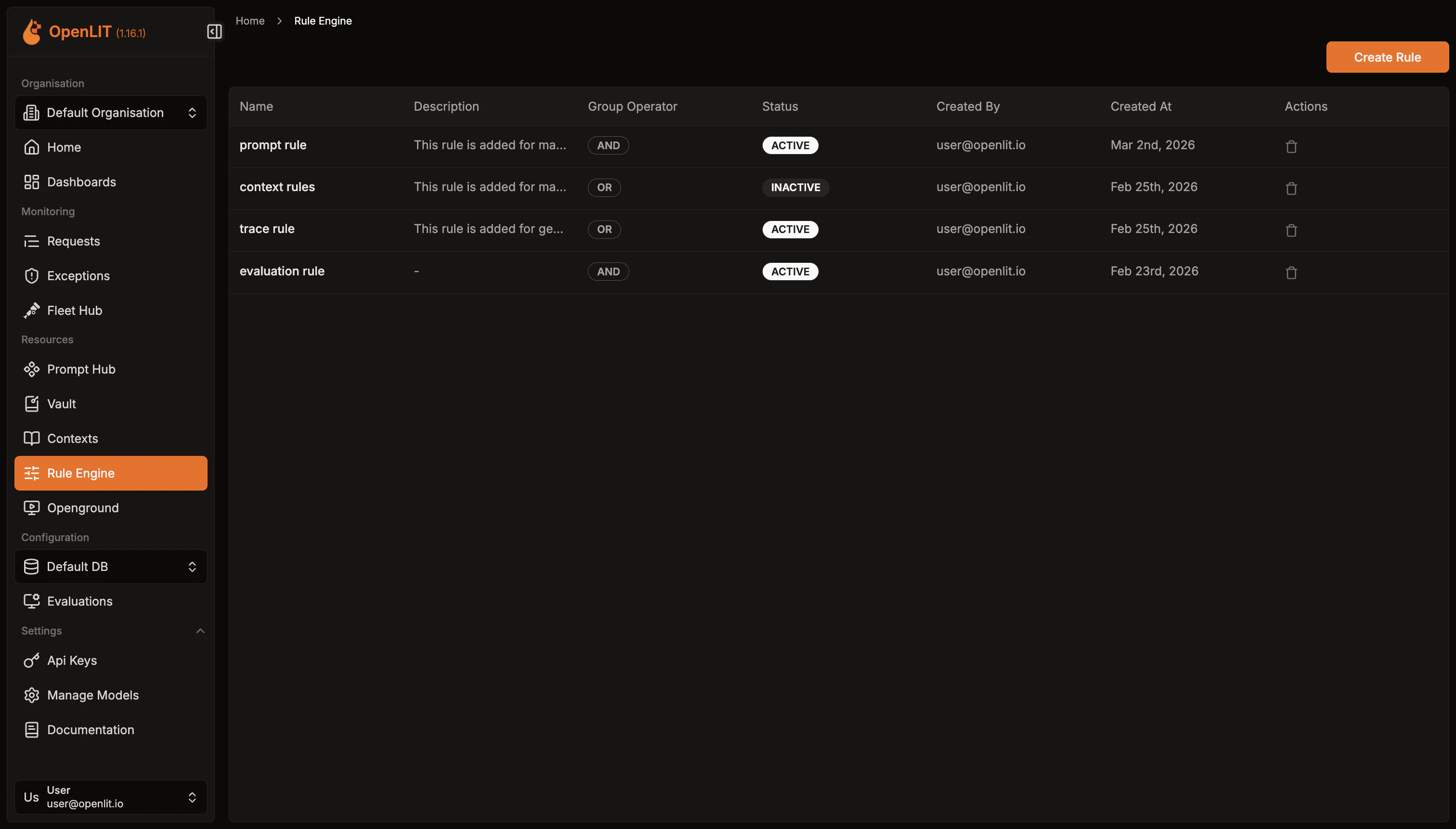 The **Rule Engine** list page (`/rule-engine`) shows every rule you've created, with columns for Name, Description, Group Operator (badge), Status (Active/Inactive badge), Created By, Created At, and Actions. Clicking anywhere on a row opens that rule's detail page.
## Create a rule
Once your database connection is healthy, a **Create Rule** button appears on the list page. Clicking it opens a dialog - there's no separate page for creating a rule.
The dialog title is **"Create a new rule"** when opened from the list page. If you instead start from a Context or Prompt's own page, the same dialog opens titled **"Create rule and link to context"** or **"Create rule and link to prompt"**, and pre-fills the link to that entity for you.
The dialog has these fields:
* **Name** - required, e.g. "High cost alert".
* **Description** - optional, describing what the rule does.
* **Group Operator** - required. Choose "AND - all groups match" or "OR - any group matches" (default AND). This sets how the rule's condition groups are combined once you add them - see [Conditions](/latest/openlit/prompts-experiments/rule-engine/conditions).
* **Status** - required. Choose Active or Inactive (default Active). Only Active rules are ever evaluated.
Click **Create rule** to save. The rule is created without any conditions or linked entities yet - you add those from its detail page.
## The rule detail page
Opening a rule (`/rule-engine/[id]`) shows a **Back** button to return to the list, plus:
* A **rule info** card and the condition builder on the left.
* A **Rule Preview** card and an **Associated Entities** card, stacked on the right.
The rule info card shows the Name, Status badge, Group Operator badge, and "Created by {name} · {date}", plus the Description if one was set. Click the **Edit Details** (pencil) button to switch into edit mode for Name, Description, Group Operator, and Status, with **Cancel** and **Save** buttons.
See [Conditions](/latest/openlit/prompts-experiments/rule-engine/conditions) for how to build the matching logic, [Preview](/latest/openlit/prompts-experiments/rule-engine/preview) for testing it against recent traces, and [Linked Entities](/latest/openlit/prompts-experiments/rule-engine/linked-entities) for connecting the rule to a Context, Prompt, or Evaluation Type.
## Delete a rule
From the list page, click the delete (trash) icon in a rule's Actions column. You'll be asked to confirm:
> Are you sure you want to delete this rule?
> Deleting this rule will also remove all its conditions and entity associations.
Deleting a rule removes it entirely, along with its condition groups and any entity links - this can't be undone.
***
Build condition groups, pick fields and operators, and combine groups with AND/OR
The **Rule Engine** list page (`/rule-engine`) shows every rule you've created, with columns for Name, Description, Group Operator (badge), Status (Active/Inactive badge), Created By, Created At, and Actions. Clicking anywhere on a row opens that rule's detail page.
## Create a rule
Once your database connection is healthy, a **Create Rule** button appears on the list page. Clicking it opens a dialog - there's no separate page for creating a rule.
The dialog title is **"Create a new rule"** when opened from the list page. If you instead start from a Context or Prompt's own page, the same dialog opens titled **"Create rule and link to context"** or **"Create rule and link to prompt"**, and pre-fills the link to that entity for you.
The dialog has these fields:
* **Name** - required, e.g. "High cost alert".
* **Description** - optional, describing what the rule does.
* **Group Operator** - required. Choose "AND - all groups match" or "OR - any group matches" (default AND). This sets how the rule's condition groups are combined once you add them - see [Conditions](/latest/openlit/prompts-experiments/rule-engine/conditions).
* **Status** - required. Choose Active or Inactive (default Active). Only Active rules are ever evaluated.
Click **Create rule** to save. The rule is created without any conditions or linked entities yet - you add those from its detail page.
## The rule detail page
Opening a rule (`/rule-engine/[id]`) shows a **Back** button to return to the list, plus:
* A **rule info** card and the condition builder on the left.
* A **Rule Preview** card and an **Associated Entities** card, stacked on the right.
The rule info card shows the Name, Status badge, Group Operator badge, and "Created by {name} · {date}", plus the Description if one was set. Click the **Edit Details** (pencil) button to switch into edit mode for Name, Description, Group Operator, and Status, with **Cancel** and **Save** buttons.
See [Conditions](/latest/openlit/prompts-experiments/rule-engine/conditions) for how to build the matching logic, [Preview](/latest/openlit/prompts-experiments/rule-engine/preview) for testing it against recent traces, and [Linked Entities](/latest/openlit/prompts-experiments/rule-engine/linked-entities) for connecting the rule to a Context, Prompt, or Evaluation Type.
## Delete a rule
From the list page, click the delete (trash) icon in a rule's Actions column. You'll be asked to confirm:
> Are you sure you want to delete this rule?
> Deleting this rule will also remove all its conditions and entity associations.
Deleting a rule removes it entirely, along with its condition groups and any entity links - this can't be undone.
***
Build condition groups, pick fields and operators, and combine groups with AND/OR