> ## Documentation Index
> Fetch the complete documentation index at: https://docs.openlit.io/llms.txt
> Use this file to discover all available pages before exploring further.
# Conditions
> Build condition groups on a rule's detail page - pick fields and operators from dropdowns, and combine groups with AND/OR
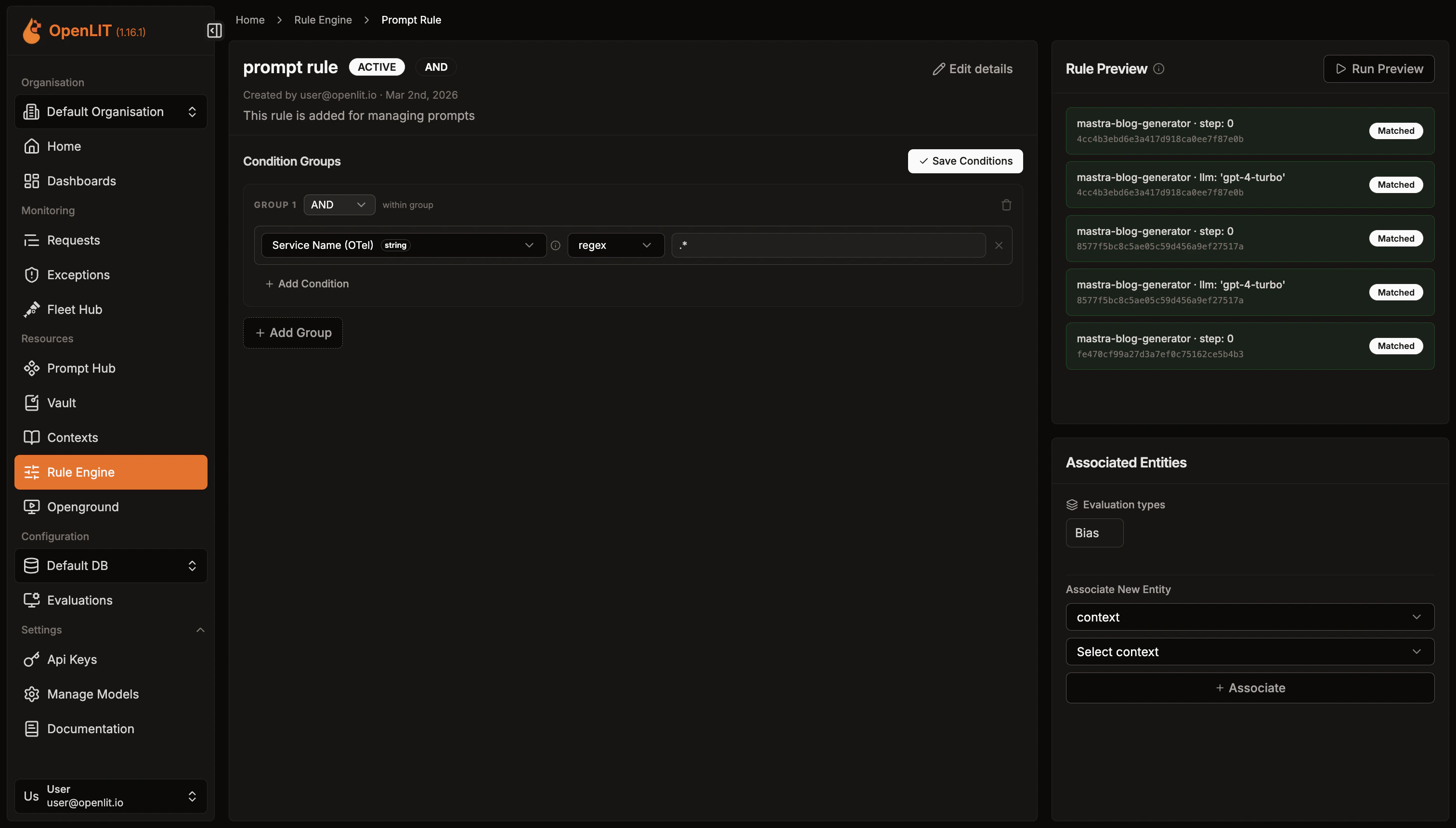 A rule's matching logic lives in its **Condition Groups** section, on the rule's detail page. Conditions are organized into groups: each group has its own AND/OR operator for the conditions inside it, and the rule's top-level **Group Operator** (set when you created the rule, editable from **Edit Details**) decides how the groups themselves are combined.
## Adding groups and conditions
* On a rule with no conditions yet, you'll see "No condition groups yet." and an **Add First Group** button.
* On a rule that already has groups, click **Add Group** to add another one.
* Inside a group, click **Add Condition** to add a condition. Each group shows its own AND/OR choice, labeled "within group", for combining the conditions inside it.
* When you're done, click **Save Conditions** to persist your changes.
## Fields, operators, and values
Each condition has three parts:
* **Field** - a dropdown. You choose from a fixed list of fields (there's no way to type an arbitrary custom field name).
* **Operator** - a dropdown whose options depend on the field's data type (string or number - see below).
* **Value** - a text input. For fields that commonly take one of a known set of real-world values, you'll see suggestions labeled "Top 100 values from traces. Press Enter to add a custom value."
### Available fields
All fields come from your trace/telemetry data. The number fields are marked below; everything else is a string field.
| Field | Type |
| --------------- | ------ |
| Service Name | string |
| Span Name | string |
| Span Kind | string |
| Duration (ms) | number |
| Status Code | string |
| Deployment Env | string |
| Gen AI System | string |
| Model | string |
| Input Tokens | number |
| Output Tokens | number |
| Total Cost (\$) | number |
| Temperature | number |
For example, **Model** is the model name reported by your LLM calls, and **Total Cost (\$)** is the cost recorded for a request.
### String field operators
| Operator | Description |
| -------------- | ------------------------------------------ |
| `equals` | Exact match |
| `not_equals` | Does not match |
| `contains` | Substring match |
| `not_contains` | Substring not present |
| `starts_with` | Prefix match |
| `ends_with` | Suffix match |
| `regex` | Regular expression match |
| `in` | Value is one of a comma-separated list |
| `not_in` | Value is not one of a comma-separated list |
### Number field operators
| Operator | Description |
| ------------ | ------------------------------------- |
| `equals` | Exact numeric match |
| `not_equals` | Does not match numerically |
| `gt` | Greater than |
| `gte` | Greater than or equal to |
| `lt` | Less than |
| `lte` | Less than or equal to |
| `between` | Inclusive range, entered as `min,max` |
There's currently no boolean-type field in the condition builder, so boolean operators aren't reachable from the UI today. The underlying evaluation logic does support an `equals` check for boolean values at the API level, but that's a forward-looking detail rather than something you can build visually yet.
## Worked example
Say you want a rule to match requests to a specific, more expensive model where the cost is also high - a candidate for a cost alert:
1. Click **Add First Group** (or **Add Group** if the rule already has one).
2. Leave the group's "within group" operator on AND.
3. Click **Add Condition**, choose Field = **Model**, Operator = **equals**, Value = the model name (e.g. `gpt-4`).
4. Click **Add Condition** again, choose Field = **Total Cost (\$)**, Operator = **gt**, Value = `1000`.
5. Click **Save Conditions**.
This group now matches any request where Model equals your chosen model **AND** Total Cost is greater than 1000. If you add a second group, the rule's top-level Group Operator decides whether both groups must match (AND) or either one is enough (OR).
***
Test your saved conditions against recent traces before relying on them
Connect the rule to a Context, Prompt, or Evaluation Type
A rule's matching logic lives in its **Condition Groups** section, on the rule's detail page. Conditions are organized into groups: each group has its own AND/OR operator for the conditions inside it, and the rule's top-level **Group Operator** (set when you created the rule, editable from **Edit Details**) decides how the groups themselves are combined.
## Adding groups and conditions
* On a rule with no conditions yet, you'll see "No condition groups yet." and an **Add First Group** button.
* On a rule that already has groups, click **Add Group** to add another one.
* Inside a group, click **Add Condition** to add a condition. Each group shows its own AND/OR choice, labeled "within group", for combining the conditions inside it.
* When you're done, click **Save Conditions** to persist your changes.
## Fields, operators, and values
Each condition has three parts:
* **Field** - a dropdown. You choose from a fixed list of fields (there's no way to type an arbitrary custom field name).
* **Operator** - a dropdown whose options depend on the field's data type (string or number - see below).
* **Value** - a text input. For fields that commonly take one of a known set of real-world values, you'll see suggestions labeled "Top 100 values from traces. Press Enter to add a custom value."
### Available fields
All fields come from your trace/telemetry data. The number fields are marked below; everything else is a string field.
| Field | Type |
| --------------- | ------ |
| Service Name | string |
| Span Name | string |
| Span Kind | string |
| Duration (ms) | number |
| Status Code | string |
| Deployment Env | string |
| Gen AI System | string |
| Model | string |
| Input Tokens | number |
| Output Tokens | number |
| Total Cost (\$) | number |
| Temperature | number |
For example, **Model** is the model name reported by your LLM calls, and **Total Cost (\$)** is the cost recorded for a request.
### String field operators
| Operator | Description |
| -------------- | ------------------------------------------ |
| `equals` | Exact match |
| `not_equals` | Does not match |
| `contains` | Substring match |
| `not_contains` | Substring not present |
| `starts_with` | Prefix match |
| `ends_with` | Suffix match |
| `regex` | Regular expression match |
| `in` | Value is one of a comma-separated list |
| `not_in` | Value is not one of a comma-separated list |
### Number field operators
| Operator | Description |
| ------------ | ------------------------------------- |
| `equals` | Exact numeric match |
| `not_equals` | Does not match numerically |
| `gt` | Greater than |
| `gte` | Greater than or equal to |
| `lt` | Less than |
| `lte` | Less than or equal to |
| `between` | Inclusive range, entered as `min,max` |
There's currently no boolean-type field in the condition builder, so boolean operators aren't reachable from the UI today. The underlying evaluation logic does support an `equals` check for boolean values at the API level, but that's a forward-looking detail rather than something you can build visually yet.
## Worked example
Say you want a rule to match requests to a specific, more expensive model where the cost is also high - a candidate for a cost alert:
1. Click **Add First Group** (or **Add Group** if the rule already has one).
2. Leave the group's "within group" operator on AND.
3. Click **Add Condition**, choose Field = **Model**, Operator = **equals**, Value = the model name (e.g. `gpt-4`).
4. Click **Add Condition** again, choose Field = **Total Cost (\$)**, Operator = **gt**, Value = `1000`.
5. Click **Save Conditions**.
This group now matches any request where Model equals your chosen model **AND** Total Cost is greater than 1000. If you add a second group, the rule's top-level Group Operator decides whether both groups must match (AND) or either one is enough (OR).
***
Test your saved conditions against recent traces before relying on them
Connect the rule to a Context, Prompt, or Evaluation Type