> ## Documentation Index
> Fetch the complete documentation index at: https://docs.openlit.io/llms.txt
> Use this file to discover all available pages before exploring further.
# Manage Contexts
> Create, edit, and delete contexts - name, description, markdown content, status, tags, and meta properties
## List contexts
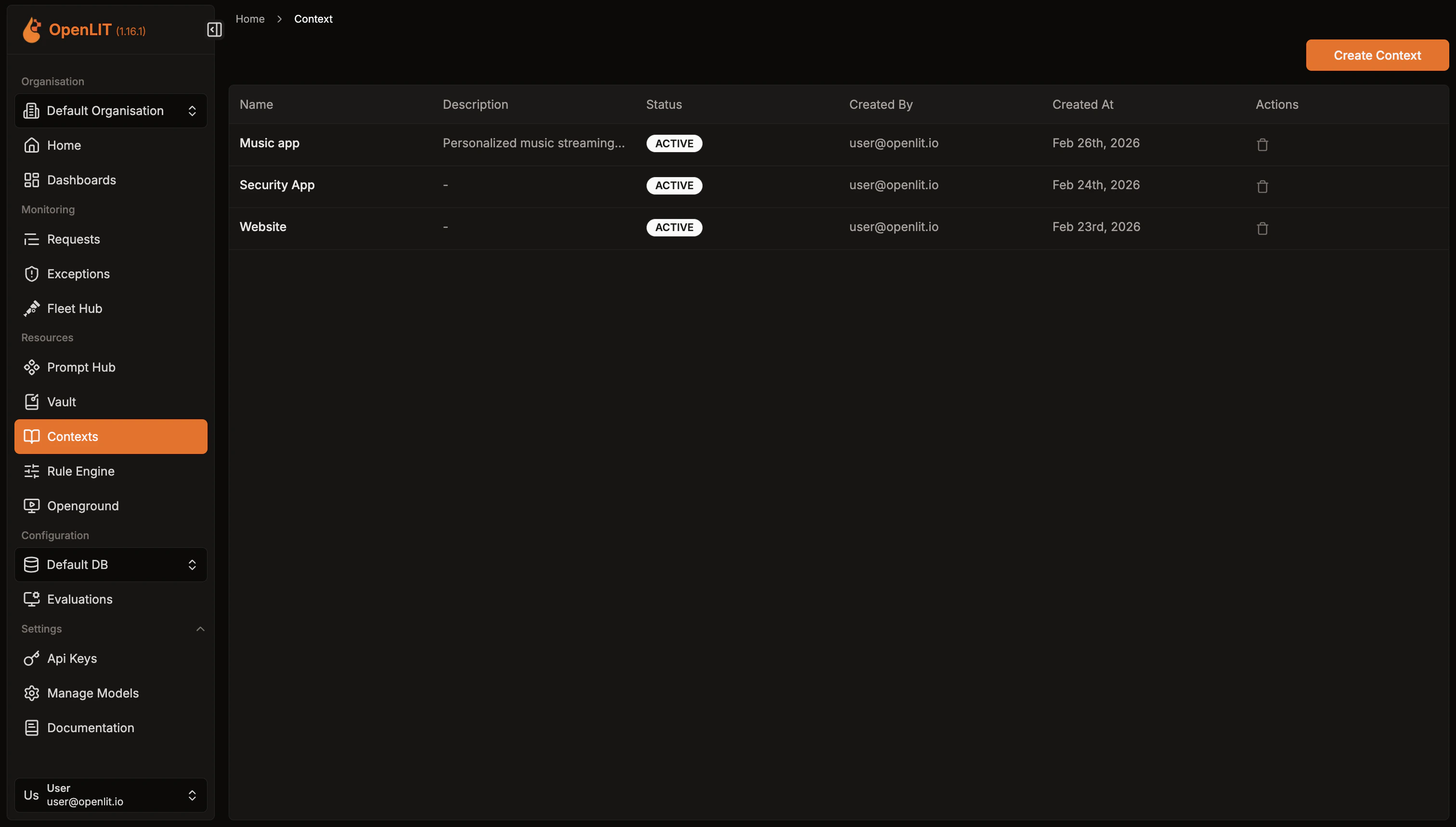 Navigate to **Contexts** in the OpenLIT sidebar to see every context you've created. The table shows:
* **Name**
* **Description** - or `-` if none was set
* **Status** - an *Active* or *Inactive* badge
* **Created By**
* **Created At**
* **Actions** - a delete (trash) icon
Clicking anywhere on a row opens that context's detail page. The delete icon is the only row action - there's no shortcut on the list page to create a rule from a context row.
## Create a context
1. From the list page, open the create page at `/context/new`.
2. Enter a **Name** (required, placeholder "My Context").
3. Optionally enter a **Description** (placeholder "Optional description").
4. Write your **Content** in the markdown editor:
* The **Write** tab is a plain textarea with the hint "Write your context content here. Markdown is supported."
* The **Preview** tab renders your content as Markdown, or shows "Nothing to preview yet." if the content is empty.
5. Set **Status** to *Active* or *Inactive* (defaults to Active).
6. Add **Tags** by typing and pressing Enter (placeholder "Add a tag, press Enter").
7. Add **Meta Properties** as key-value pairs using the "Add property" button.
8. Click **Save Context**.
If **Name** is empty, you'll see "Context name is required!". If **Content** is empty, you'll see "Context content is required!". While saving, a "Creating context..." toast appears, followed by "Created context successfully!" on success, and you're taken to the new context's detail page.
## View and edit a context
Navigate to **Contexts** in the OpenLIT sidebar to see every context you've created. The table shows:
* **Name**
* **Description** - or `-` if none was set
* **Status** - an *Active* or *Inactive* badge
* **Created By**
* **Created At**
* **Actions** - a delete (trash) icon
Clicking anywhere on a row opens that context's detail page. The delete icon is the only row action - there's no shortcut on the list page to create a rule from a context row.
## Create a context
1. From the list page, open the create page at `/context/new`.
2. Enter a **Name** (required, placeholder "My Context").
3. Optionally enter a **Description** (placeholder "Optional description").
4. Write your **Content** in the markdown editor:
* The **Write** tab is a plain textarea with the hint "Write your context content here. Markdown is supported."
* The **Preview** tab renders your content as Markdown, or shows "Nothing to preview yet." if the content is empty.
5. Set **Status** to *Active* or *Inactive* (defaults to Active).
6. Add **Tags** by typing and pressing Enter (placeholder "Add a tag, press Enter").
7. Add **Meta Properties** as key-value pairs using the "Add property" button.
8. Click **Save Context**.
If **Name** is empty, you'll see "Context name is required!". If **Content** is empty, you'll see "Context content is required!". While saving, a "Creating context..." toast appears, followed by "Created context successfully!" on success, and you're taken to the new context's detail page.
## View and edit a context
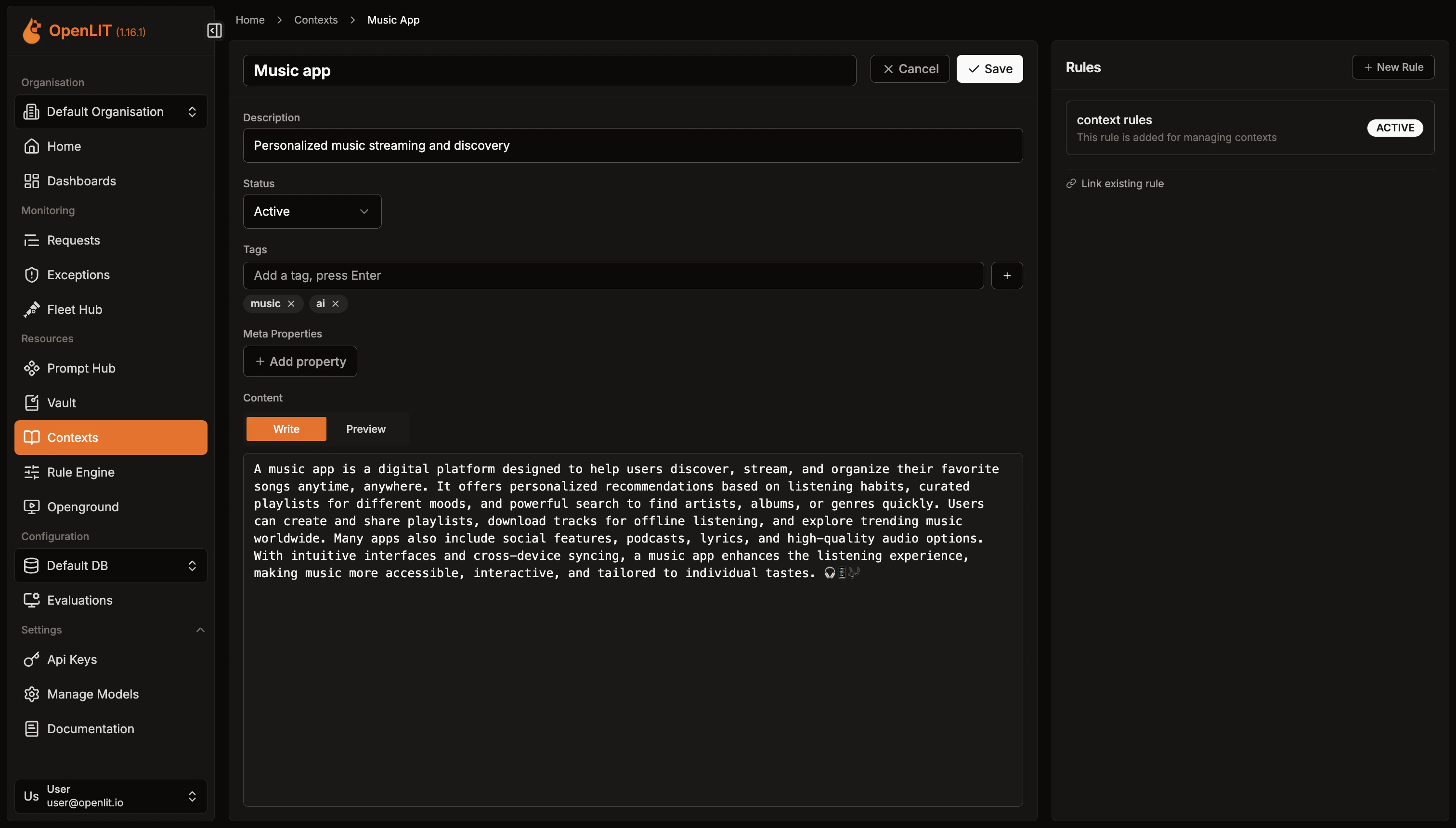 The detail page (`/context/[id]`) shows the context's name, a Status badge, and "Created By {name} · {date}".
Outside edit mode:
* **Content** renders read-only as Markdown, or shows "No content yet. Click Edit to add content." if empty.
* **Tags** and **Meta Properties** show "None" if empty.
Click **Edit** to switch the whole card into edit mode. Name, Description, Content (with its Write/Preview tabs), Status, Tags, and Meta Properties all become editable in place. From here you can:
* Click **Cancel** to discard your changes and return to the read-only view.
* Click **Save** to apply your changes. A "Updated context successfully!" toast confirms the update.
There is no separate edit page or URL - editing always happens inline on the detail page.
## Delete a context
Deleting a context is only available from the list page - there is no delete control on the detail page.
1. On the **Contexts** list page, click the delete (trash) icon on the row for the context you want to remove.
2. Confirm the prompt: "Are you sure you want to delete this context? Deleting context might break applications using it. Please confirm before deleting it."
This action is permanent.
***
Connect a context to one or more Rule Engine rules
The detail page (`/context/[id]`) shows the context's name, a Status badge, and "Created By {name} · {date}".
Outside edit mode:
* **Content** renders read-only as Markdown, or shows "No content yet. Click Edit to add content." if empty.
* **Tags** and **Meta Properties** show "None" if empty.
Click **Edit** to switch the whole card into edit mode. Name, Description, Content (with its Write/Preview tabs), Status, Tags, and Meta Properties all become editable in place. From here you can:
* Click **Cancel** to discard your changes and return to the read-only view.
* Click **Save** to apply your changes. A "Updated context successfully!" toast confirms the update.
There is no separate edit page or URL - editing always happens inline on the detail page.
## Delete a context
Deleting a context is only available from the list page - there is no delete control on the detail page.
1. On the **Contexts** list page, click the delete (trash) icon on the row for the context you want to remove.
2. Confirm the prompt: "Are you sure you want to delete this context? Deleting context might break applications using it. Please confirm before deleting it."
This action is permanent.
***
Connect a context to one or more Rule Engine rules