> ## Documentation Index
> Fetch the complete documentation index at: https://docs.openlit.io/llms.txt
> Use this file to discover all available pages before exploring further.
# Create Folder
> Create folders to organize dashboards into logical collections by team, feature, environment, or product for better management and navigation.
## Steps
1. Navigate to the **Dashboards** section in the main navigation
2. Click the **Create new dashboard** button in the top right corner
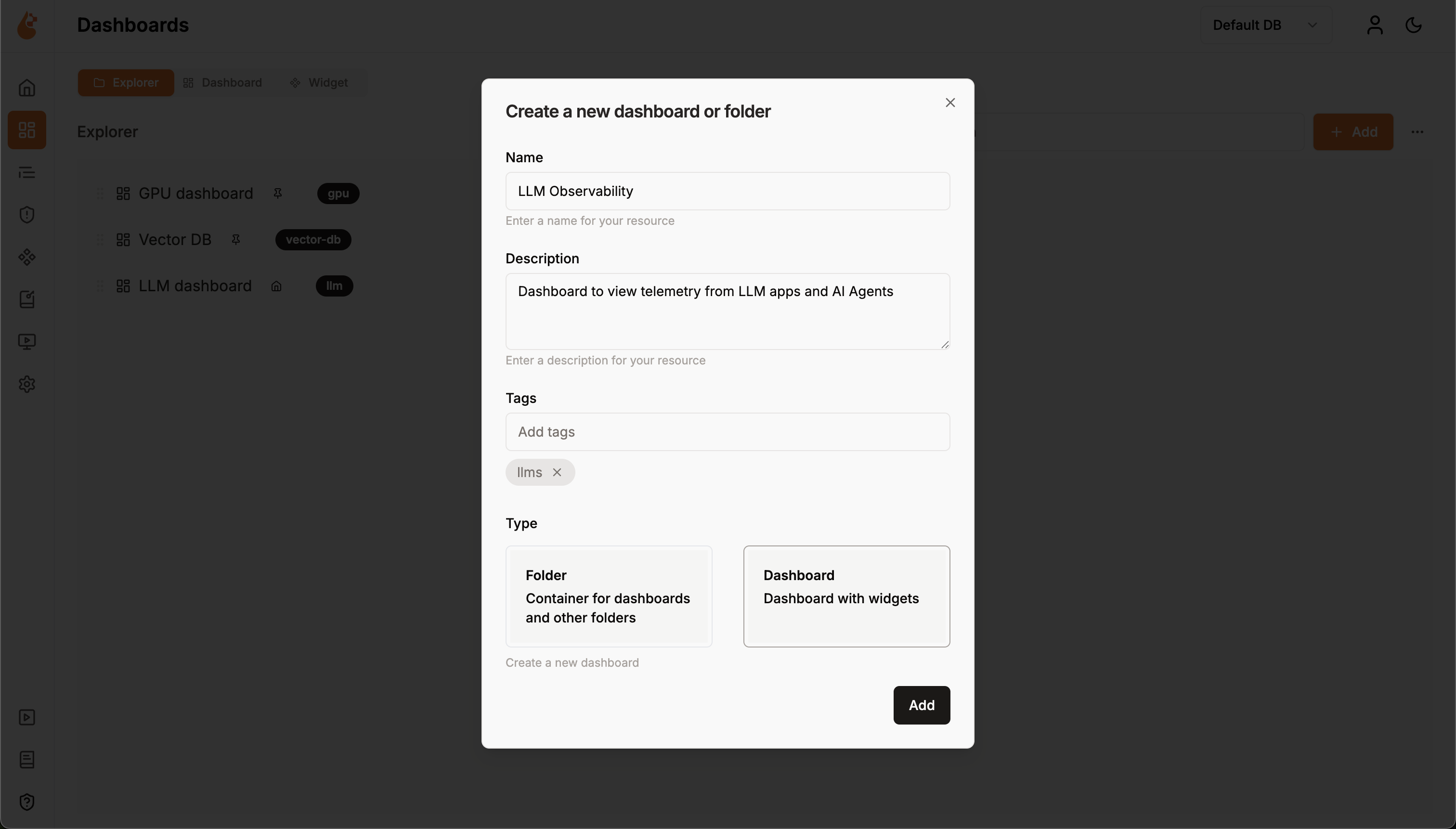
3. A **"Create a new dashboard or folder"** popup will appear
4. **Fill in the folder details**:
* **Name**: Enter a descriptive name for your folder (e.g., "Production Monitoring")
* **Description**: Describe what dashboards this folder will contain
* **Tags**: Add relevant tags for organization and searchability
* **Type**: Select **Folder** (Container for dashboards and other folders)
5. Click the **Add** button to create your folder
6. Your new folder will appear in the dashboard explorer
You can now **drag and drop dashboards** into it directly from the dashboard list.
 1. Navigate to the **Dashboards** section in the main navigation
2. Click the **Create new dashboard** button in the top right corner
3. A **"Create a new dashboard or folder"** popup will appear
4. **Fill in the folder details**:
* **Name**: Enter a descriptive name for your folder (e.g., "Production Monitoring")
* **Description**: Describe what dashboards this folder will contain
* **Tags**: Add relevant tags for organization and searchability
* **Type**: Select **Folder** (Container for dashboards and other folders)
5. Click the **Add** button to create your folder
6. Your new folder will appear in the dashboard explorer
1. Navigate to the **Dashboards** section in the main navigation
2. Click the **Create new dashboard** button in the top right corner
3. A **"Create a new dashboard or folder"** popup will appear
4. **Fill in the folder details**:
* **Name**: Enter a descriptive name for your folder (e.g., "Production Monitoring")
* **Description**: Describe what dashboards this folder will contain
* **Tags**: Add relevant tags for organization and searchability
* **Type**: Select **Folder** (Container for dashboards and other folders)
5. Click the **Add** button to create your folder
6. Your new folder will appear in the dashboard explorer